Groupes d'actifs
Les groupes d'actifs vous permettent d'organiser les actifs en fonction des paramètres définis au sein de votre organisation. Une fois les actifs regroupés, vous pouvez les gérer plus efficacement, notamment lors de l'application d'actions ou de la révision des actifs par propriété partagée, objectif ou contexte opérationnel.
Gérer les groupes
Utilisez Gérer les groupes pour créer de nouveaux groupes et supprimer ceux existants dans le flux de travail de gestion des actifs.
Comment créer un groupe
Pour créer un groupe :
-
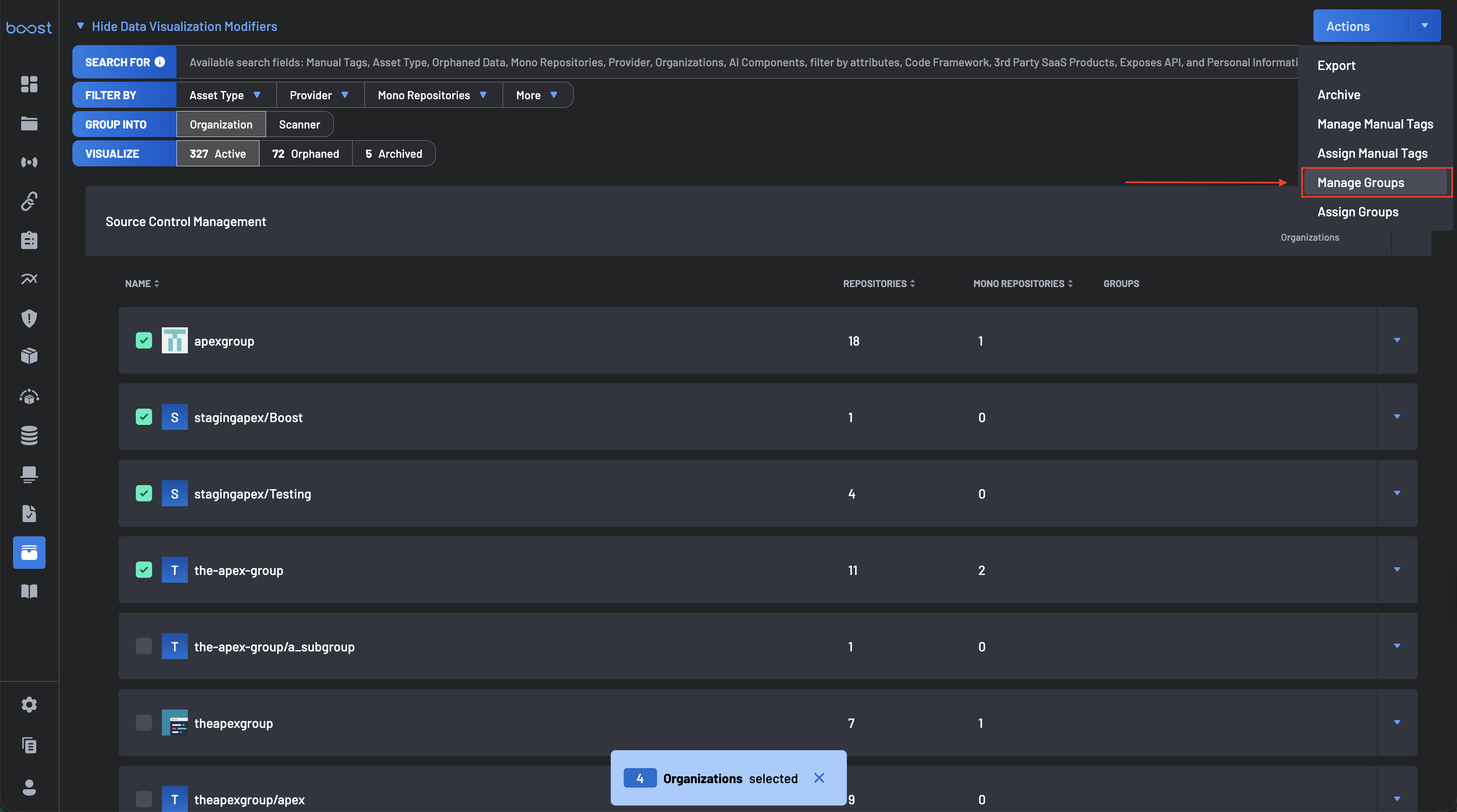
Sur la page de gestion des actifs, sélectionnez un actif (ou plusieurs actifs) à l'aide des cases à cocher.
-
Cliquez sur Actions (en haut à droite de la page).
-
Sélectionnez Gérer les groupes.
-
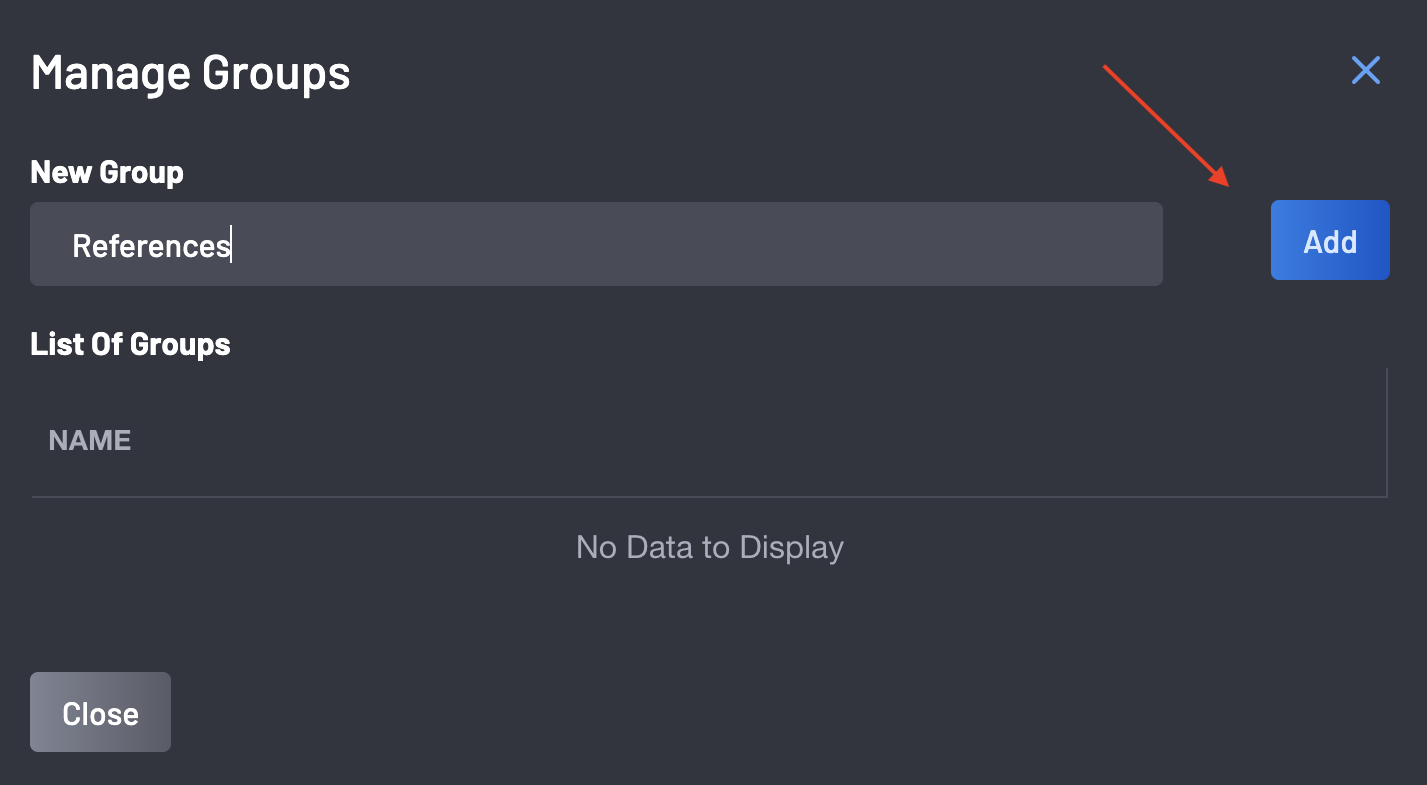
Dans la boîte de dialogue Gérer les groupes, saisissez un Nom du groupe et cliquez sur le bouton Ajouter pour créer un nouveau groupe.
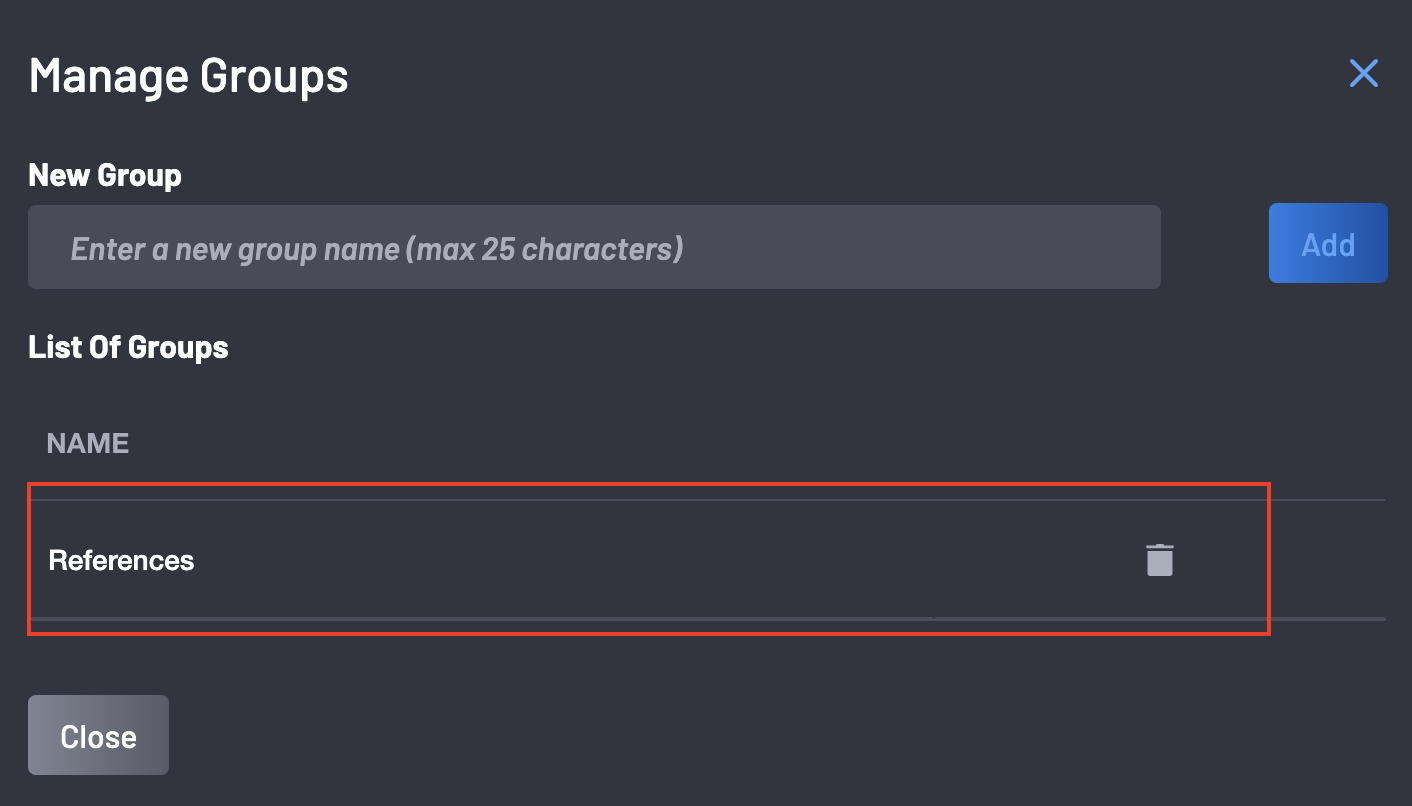
Une fois créé, le groupe devient disponible pour l'attribution à travers les actifs et apparaît dans la liste des groupes.
Assigner des groupes
Assigning groups helps you consistently organize assets so you can filter, review, and manage related resources together.
Note
Actuellement, seuls les actifs "Kubernetes" ne peuvent pas être groupés ; vous ne pouvez pas leur assigner de groupes. Tous les autres actifs dans Boost Security peuvent être groupés.
Assigner un Groupe aux Actifs
-
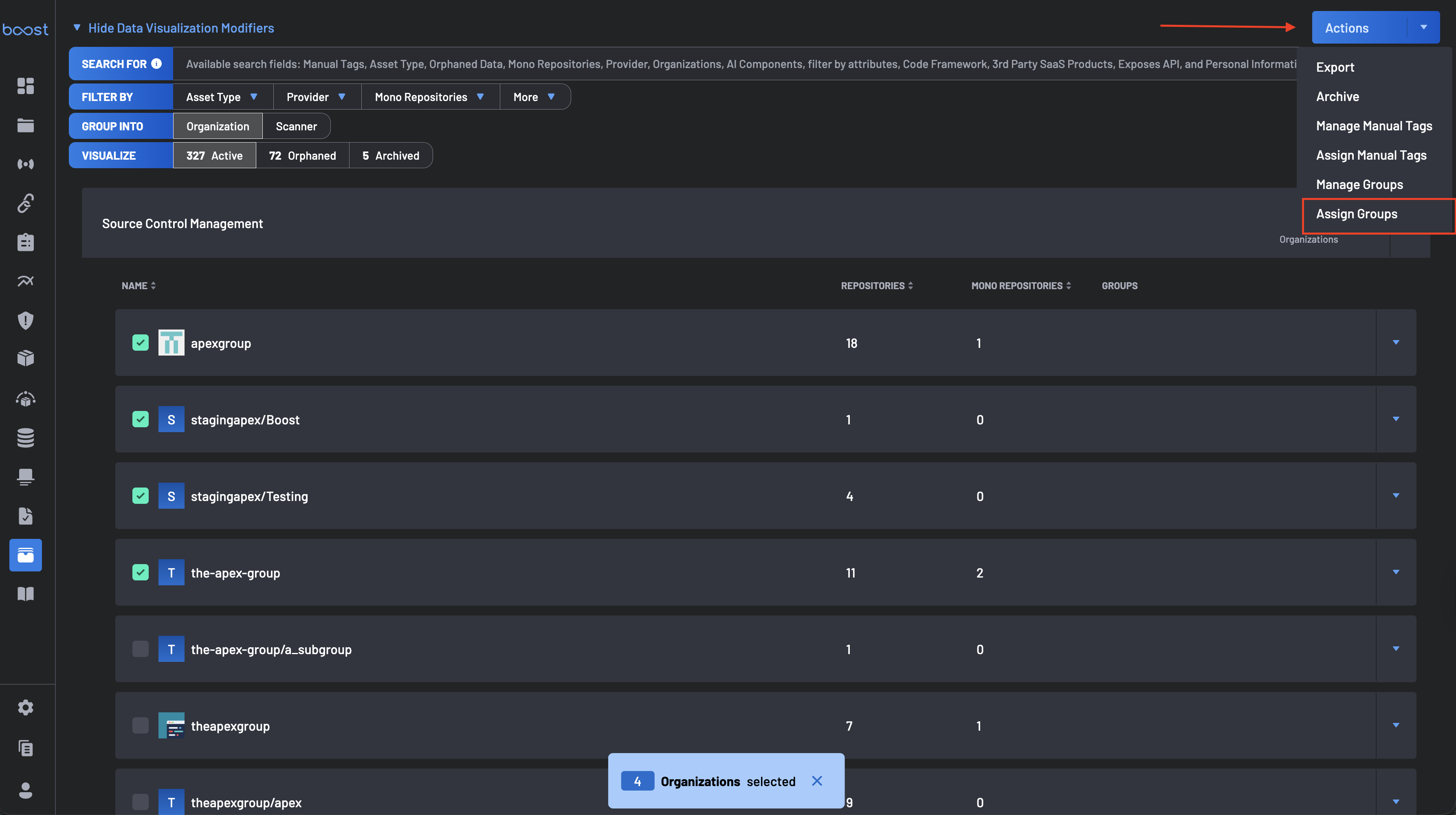
Sélectionnez un ou plusieurs actifs sur la page de Gestion des Actifs.
-
Cliquez sur Actions (en haut à droite).
-
Sélectionnez Gérer les Groupes.
-
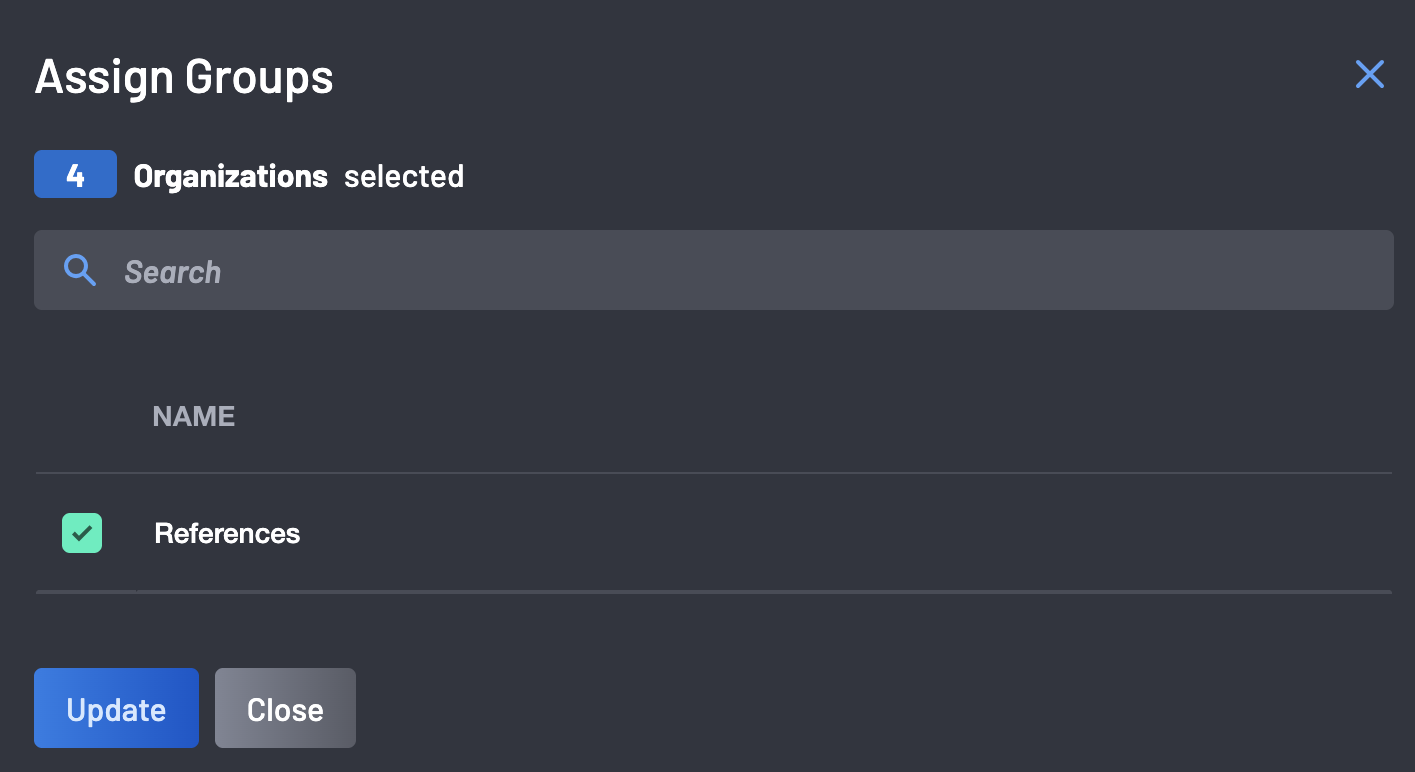
Dans la boîte de dialogue Assigner des Groupes, choisissez un ou plusieurs groupes à assigner aux actifs sélectionnés.
-
Cliquez sur Mettre à jour pour confirmer.
Après l'assignation, les actifs sélectionnés afficheront le(s) label(s) de groupe dans leurs métadonnées, et deviendront disponibles en tant que filtres.
Retirer un Groupe des Actifs
- Sélectionnez les actifs que vous souhaitez mettre à jour.
- Cliquez sur Actions → Gérer les Groupes.
-
Dans la boîte de dialogue Gérer les Groupes :
- Désélectionnez le(s) groupe(s) actuellement appliqués aux actifs.
-
Cliquez sur Appliquer (ou Enregistrer) pour confirmer.
Héritage et Précédence des Groupes
Les groupes dans Boost suivent une hiérarchie afin que vous puissiez assigner un label une fois à un niveau supérieur (par exemple, une organisation) et qu'il s'applique à tout ce qui est en dessous.
Hiérarchie
De la plus haute à la plus basse, l'héritage des groupes suit cet ordre :
- Organisation
- Ressource / Actif (dépôt individuel, image, service, etc.)
Comment Fonctionne l'Héritage
-
Les groupes sont additifs (hérités + directs) : Un actif enfant hérite des groupes de son niveau parent et peut également avoir des groupes supplémentaires assignés directement.
-
Les groupes hérités s'appliquent automatiquement : Si un groupe est assigné à une Organisation, chaque dépôt/ressource sous cette organisation héritera de ce groupe sauf si le groupe est retiré au niveau de l'organisation.
-
L'assignation à un niveau inférieur ne retire pas les groupes hérités : Si un actif hérite d'un groupe, par exemple,
Referencesde son Organisation et que vous assignezProductiondirectement au dépôt, les groupes effectifs du dépôt deviennent :References(hérité)Production(direct)
Comportement de Suppression
- Retirer un groupe d'un actif ne retire que l'assignation directe de cet actif.
- Si l'actif hérite également du même groupe de son dépôt ou organisation, le groupe apparaîtra toujours comme faisant partie des groupes effectifs de l'actif.
- Pour retirer un groupe de tout ce qui se trouve en dessous, retirez le groupe au niveau le plus élevé où il a été assigné (par exemple, Organisation).
Exemples
- L'organisation a le groupe
References: Tous les dépôts dans cette organisation affichentReferencescomme groupe effectif.
* Le dépôt ajoute le groupe Internal : Les groupes effectifs du dépôt deviennent : References + Internal.
Remarques et Comportements
- Compatible avec les opérations en masse : Des groupes peuvent être assignés à plusieurs actifs à la fois en utilisant la sélection en masse.
- Catégorisation cohérente : Les groupes sont les plus efficaces lorsque votre organisation définit un standard de nommage clair (par exemple :
équipe-*,produit-*,environnement-*).