Paramètres du Thème
BoostSecurity prend en charge un thème Clair et un thème Sombre pour améliorer la lisibilité et le confort dans différents environnements. Vous pouvez changer de thème à tout moment depuis Paramètres → Profil.
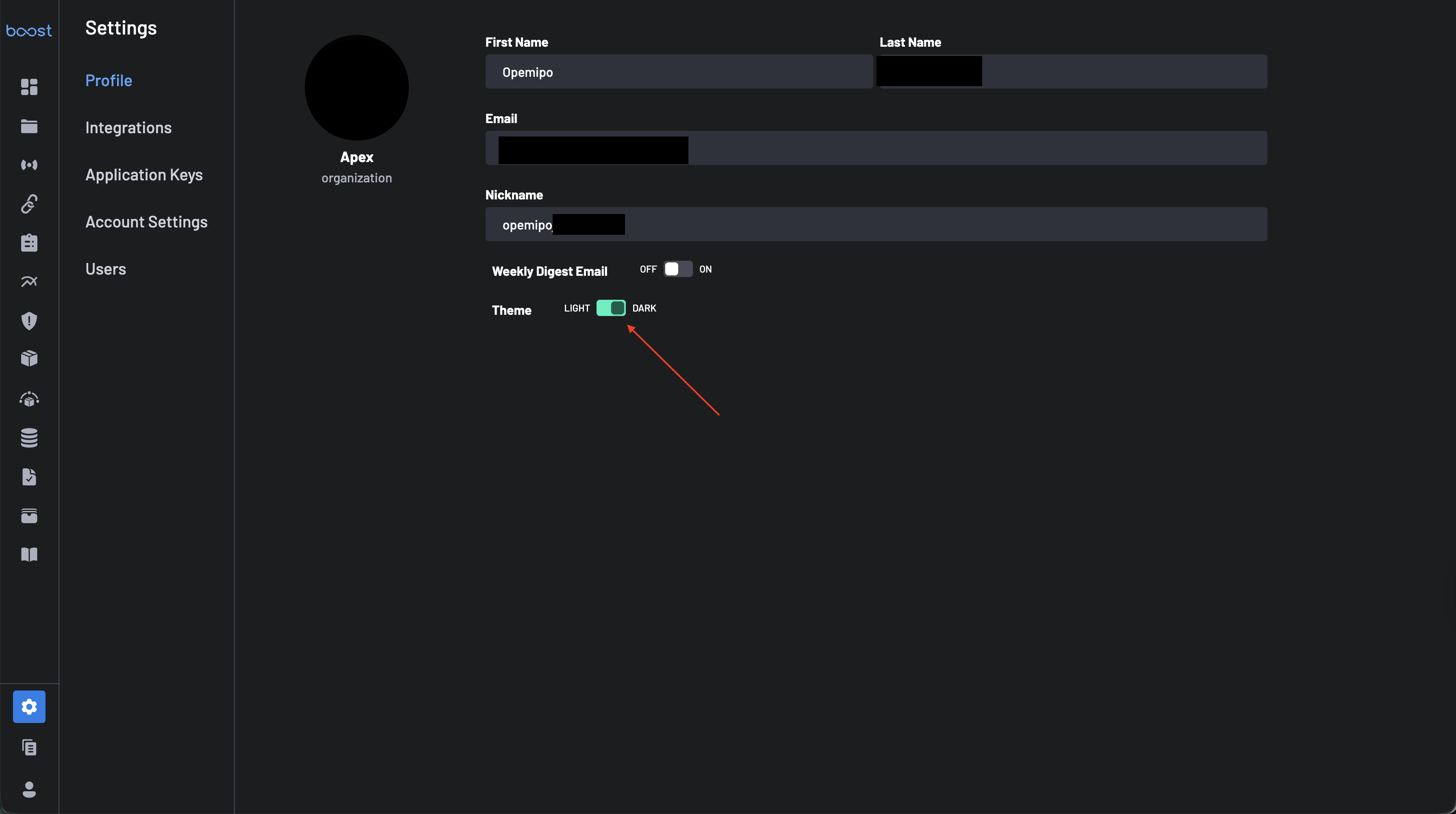
Quelles sont les modifications lorsque vous changez de thème
Changer de thème met à jour l'apparence du tableau de bord BoostSecurity, y compris :
- Fond de page et surfaces (cartes, tables, panneaux)
- Contraste du texte et des icônes
- Navigation et éléments d'interface utilisateur (barres latérales, en-têtes, menus)
La sélection du thème est une préférence d'affichage uniquement — cela n'affecte pas les scans, les politiques, les résultats ou les intégrations.
Comment changer votre thème
-
Ouvrez la page Paramètres depuis la navigation de gauche.
-
Sélectionnez Profil.
-
Sous Thème, choisissez Clair ou Sombre.
- Clair : fond plus lumineux pour des environnements bien éclairés
- Sombre : fond plus foncé pour réduire l'éblouissement et la fatigue oculaire
-
Votre sélection est appliquée immédiatement.
Tip
Si vous changez de thème pendant votre travail (par exemple, en consultant les politiques, les résultats ou les commentaires de PR), seule l'apparence de l'interface utilisateur change — votre flux de travail et votre configuration restent les mêmes.