Asset Groups
Asset groups lets you organize assets based on parameters defined within your organization. Once assets are grouped, you can manage them more efficiently, especially when applying actions or reviewing assets by shared ownership, purpose, or operational context.
Manage Groups
Use Manage Groups to create new groups and delete existing ones from the Asset Management workflow.
How to create a group
To create a group:
-
On the Asset Management page, select an asset (or multiple assets) using the checkboxes.
-
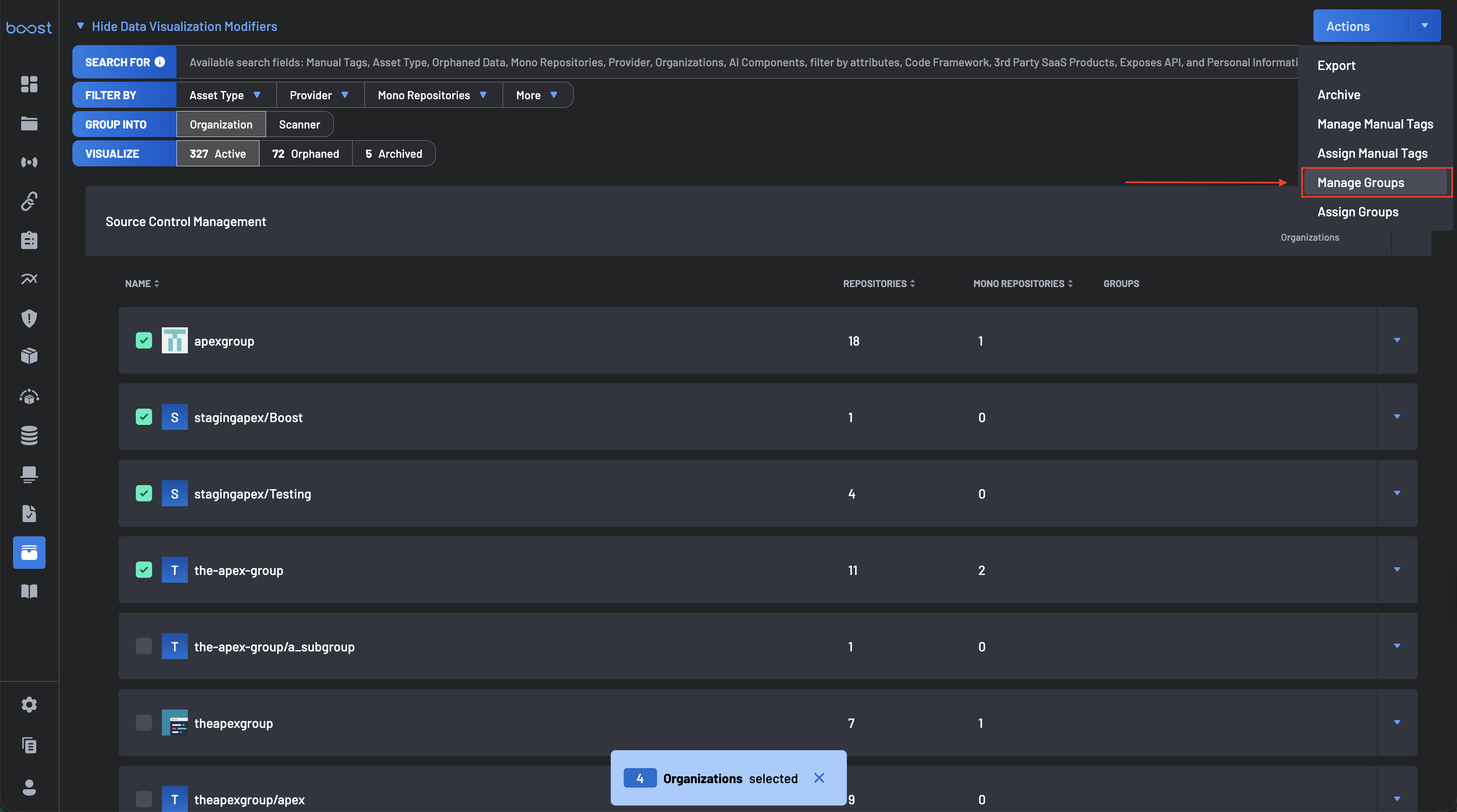
Click Actions (top-right corner of the page).
-
Select Manage Groups.
-
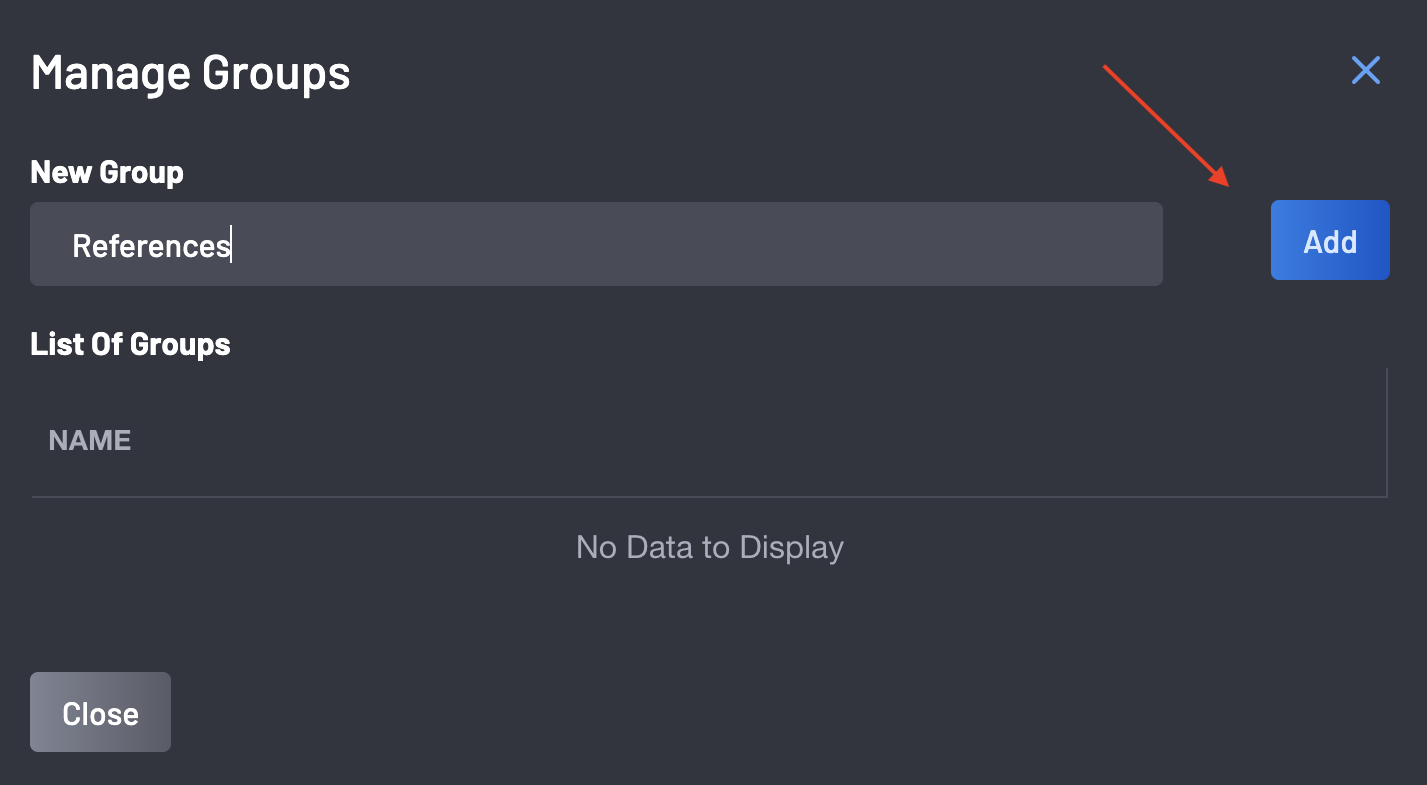
In the Manage Groups dialog, enter a Group name and click the Add button to create a new group.
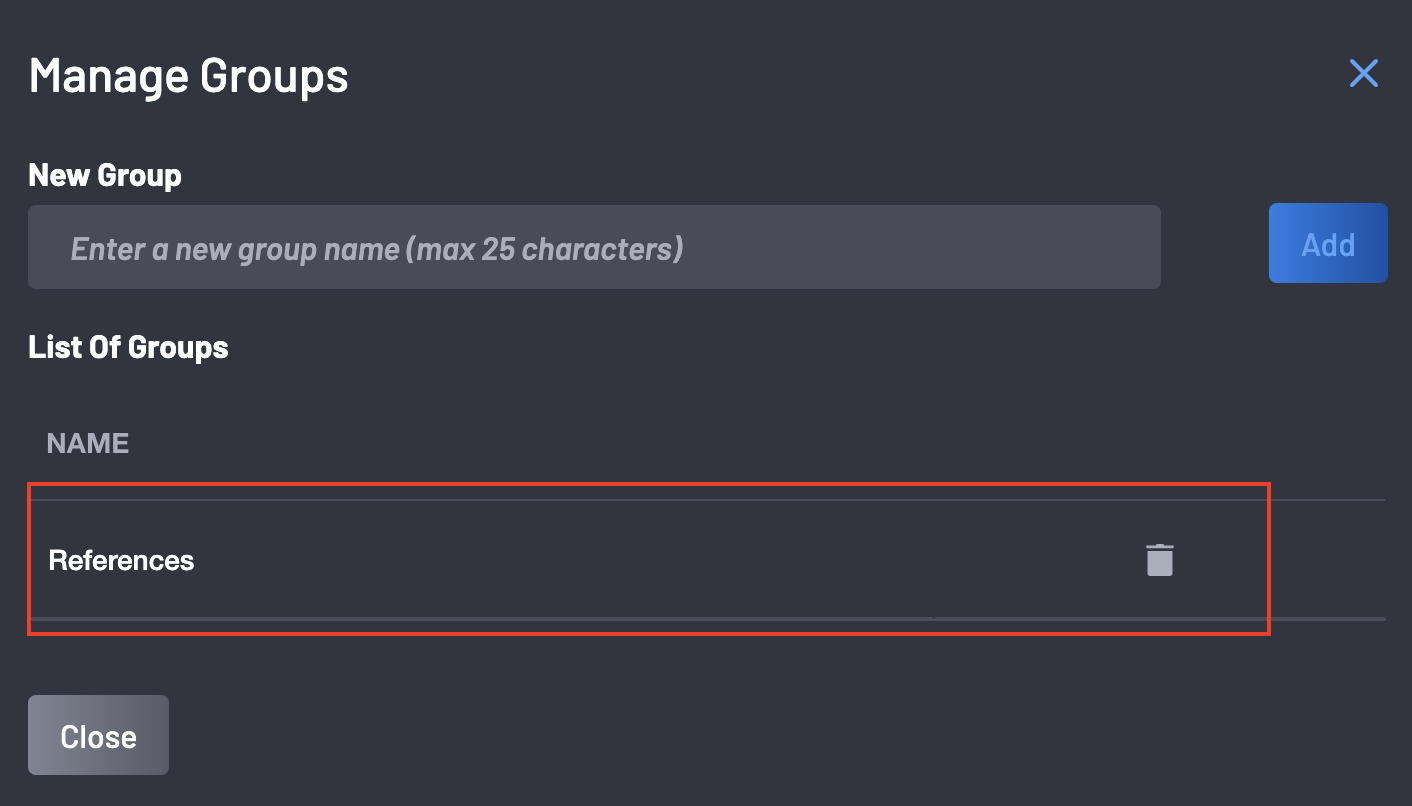
Once created, the group becomes available for assignment across assets and shows up on the list of groups.
Assign Groups
Assigning groups helps you consistently organize assets so you can filter, review, and manage related resources together.
Note
Currently, only "Kubernetes" assets are not groupable; you cannot assign groups to them. All other assets in Boost Security are groupable.
Assign a Group to Assets
-
Select one or more assets on the Asset Management page.
-
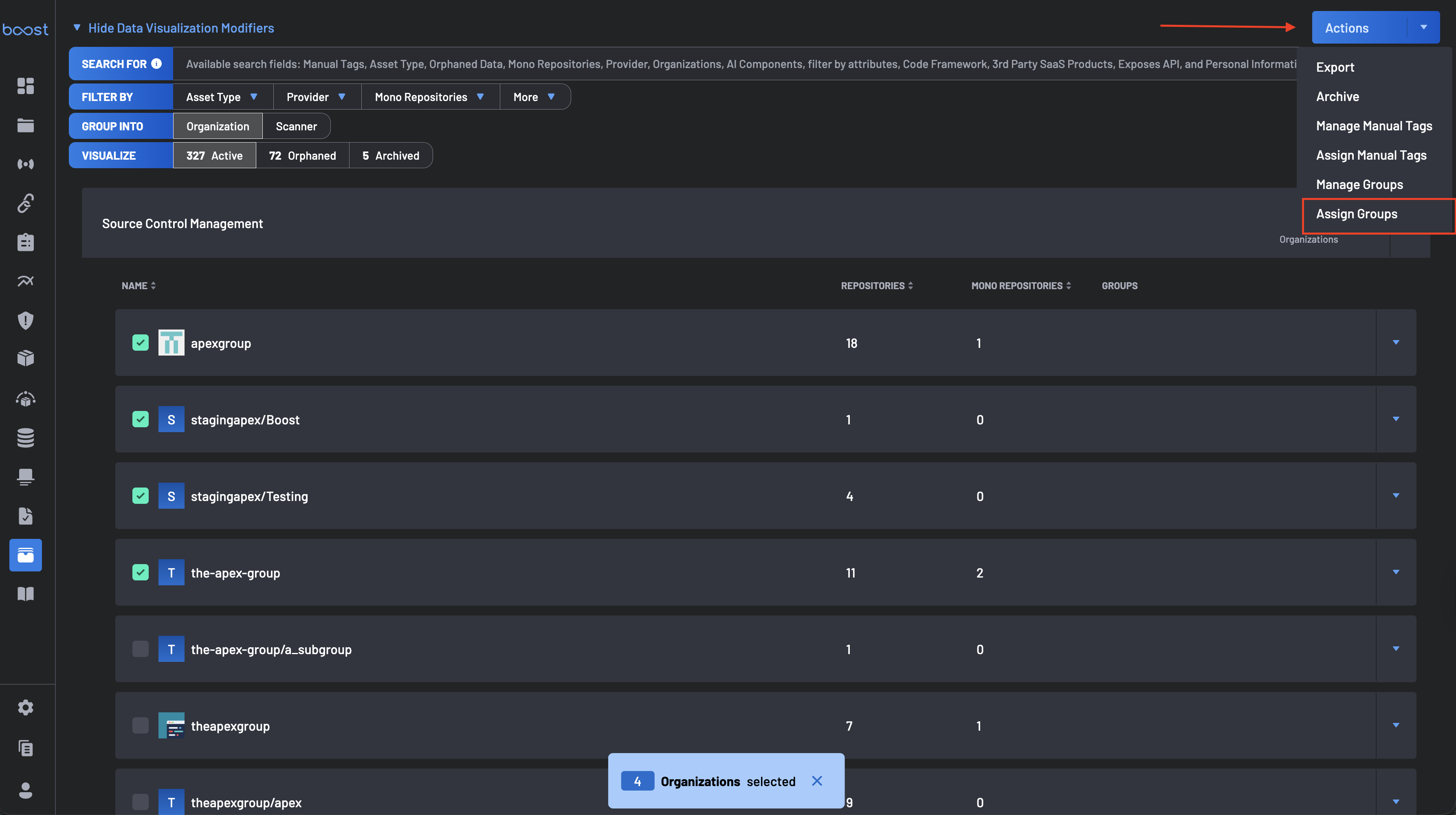
Click Actions (top-right).
-
Select Manage Groups.
-
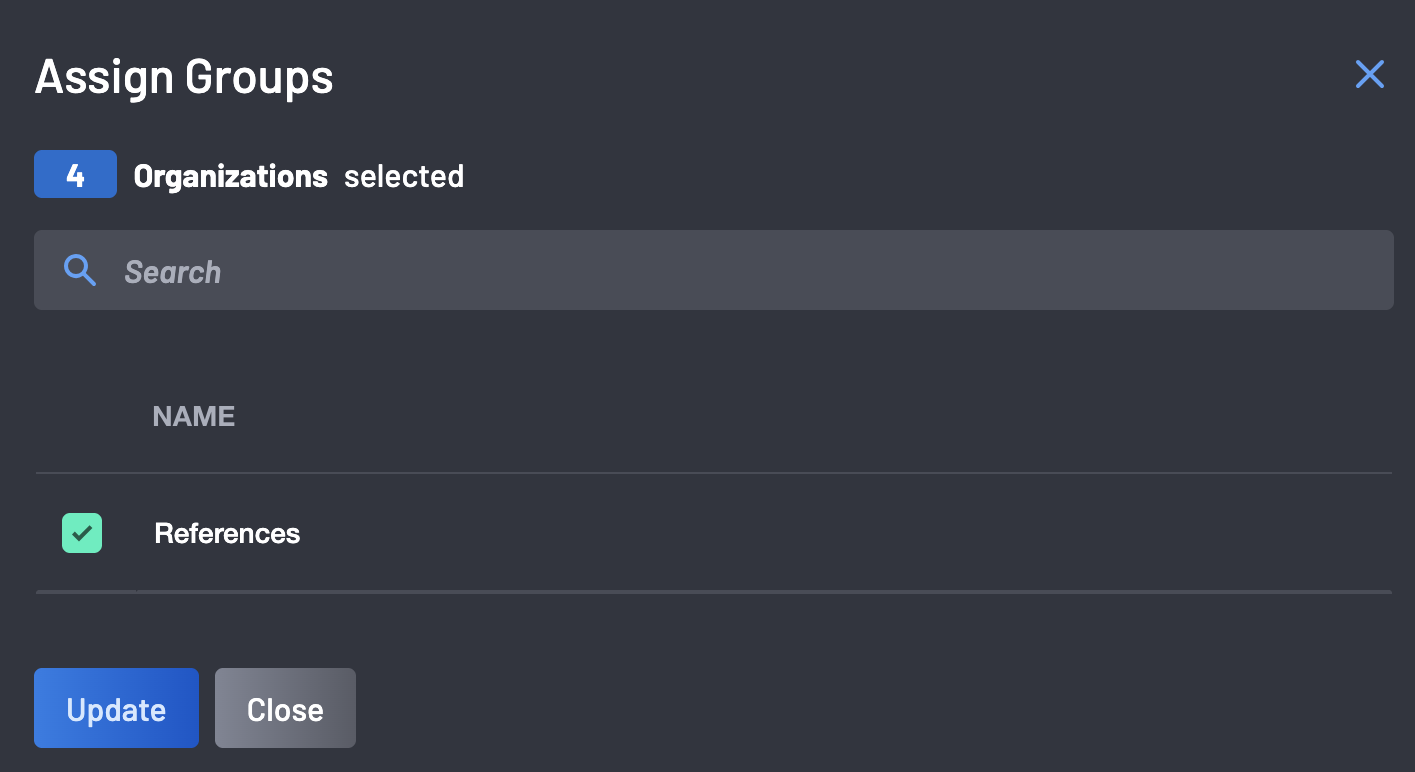
In the Assign Groups dialog, choose one or more groups to assign to the selected assets.
-
Click Update to confirm.
After assignment, the selected assets will show the group label(s) in their asset metadata and would become available as filters.
Remove a Group from Assets
- Select the assets you want to update.
- Click Actions → Manage Groups.
-
In the Manage Groups dialog:
- Unselect the group(s) currently applied to the assets.
-
Click Apply (or Save) to confirm.
Group Inheritance and Precedence
Groups in Boost follow a hierarchy so you can assign a label once at a higher level (for example, an organization) and have it apply to everything under it.
Hierarchy
From highest to lowest, group inheritance follows this order:
- Organization
- Resource / Asset (individual repository, image, service, etc.)
How Inheritance Works
-
Groups are additive (inherited + direct): A child asset inherits groups from its parent level(s) and can also have additional groups assigned directly to it.
-
Inherited groups apply automatically: If a group is assigned to an Organization, every repository/resource under that organization will inherit that group unless the group is removed at the organization level.
-
Assigning at a lower level does not remove inherited groups: If an asset inherits a group, e.g.,
Referencesfrom its Organization and you assignProductiondirectly to the repo, the repo’s effective groups become:References(inherited)Production(direct)
Removal Behavior
- Removing a group from an asset only removes that asset’s direct assignment.
- If the asset also inherits the same group from its repository or organization, the group will still appear as part of the asset’s effective groups.
- To remove a group from everything beneath it, remove the group at the highest level where it was assigned (for example, Organization).
Examples
-
Organization has group
References: All repositories in that organization showReferencesas an effective group. -
Repo adds group
Internal: The repo’s effective groups become:References+Internal.
Notes and Behaviors
- Bulk-friendly: Groups can be assigned to multiple assets at once using bulk selection.
- Consistent categorization: Groups are most effective when your organization defines a clear naming standard (for example:
team-*,product-*,environment-*).