GitLab Deployment
Deploying Boost Security scanners within GitLab requires careful handling of Docker Hub rate limits and properly configuring self-hosted runners. GitLab jobs pull some of their container images from Docker Hub, which may lead to failures due to anonymous user rate limiting. Additionally, when using self-hosted runners, ensuring correct settings, such as privileged mode, is necessary for successful execution. This document outlines the necessary steps to address these challenges, including authentication methods, dependency proxy configurations, and runner setup.
Docker Hub Pull Rate Limiting
Boost Security pulls almost all scanner images from its own copies on GitHub Container Registry (ghcr.io/boostsecurityio) and Amazon ECR Public (public.ecr.aws/boostsecurityio). The MobSF scanner (mobsfscan) is the exception and is still pulled from Docker Hub.
The Docker Hub pulls that reach the rate limit are mainly those of the images a Boost GitLab job runs on: docker:<version>-cli and docker:<version>-dind. Images added by your own steps, and the MobSF scanner image, are pulled from Docker Hub too. By default, these are pulled anonymously, making them subject to rate limiting. If the rate limit is exceeded, the job fails because the required container image cannot be retrieved. GitLab.com shared runners, and self-hosted runners that reach the internet through a single NAT address, are the most exposed.
To prevent exceeding the Docker Hub rate limit, there are two main approaches:
1. Authenticate to Docker Hub
Organizations with a Docker Hub account can configure GitLab jobs to authenticate to the registry using their account credentials.
The recommended approach is to run docker login before the Boost Security scanner runs, in the before_script of the boost-scanner job. To keep it when the template is updated, don't edit the .gitlab-ci.yml file of the Boost repository: add it in a separate CI/CD configuration file that includes .gitlab-ci.yml.
Steps:
-
Create a
.config.gitlab-ci.ymlfile in yourBoostrepository. Keep the setup steps of the Boost template with!reference, and log in after them:include: - local: .gitlab-ci.yml boost-scanner: before_script: - !reference [.boost_setup, before_script] - echo "$DOCKER_HUB_PASSWORD" | docker login --username "$DOCKER_HUB_USERNAME" --password-stdinIf the
.gitlab-ci.ymlfile has severalboost-scannerjobs, each with its own suffix, repeat thebefore_scriptoverride under the exact name of each one. A misspelled name creates a new job instead of extending the Boost job, and the pipeline fails. -
In Project Settings → CI/CD → Variables, create the masked CI/CD variables
DOCKER_HUB_USERNAMEandDOCKER_HUB_PASSWORDwith your Docker Hub credentials. -
In Project Settings → CI/CD → General pipeline, set the CI/CD configuration file to
.config.gitlab-ci.yml. See Specify a custom CI/CD configuration file.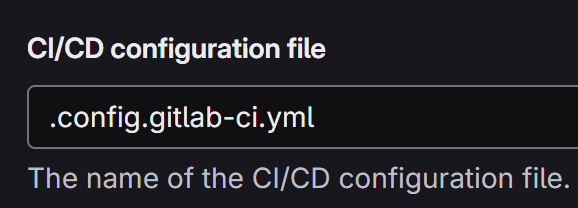
The same approach authenticates to a private Docker registry: add the registry host at the end of the docker login command.
This login applies to the images pulled while the job runs, such as the MobSF scanner image and images added by your own steps. It doesn't apply to the images the job itself runs on (docker:<version>-cli and docker:<version>-dind), which the runner pulls before the job starts. For those, follow GitLab's guidance to access an image from a private container registry, or use the dependency proxy.
For self-hosted runners, you can also modify the runner configuration to mount the Docker configuration in each job. Refer to the official GitLab documentation for more details: Mount Docker configuration.
2. Use a Docker Container Proxy
If you do not have a Docker Hub account, you can set up a dependency proxy for container images in GitLab and enable it for the group, then configure the Boost scanner to use it with the BOOST_DOCKER_PROXY CI/CD variable. It accepts two values, depending on which group's dependency proxy you use:
| Value | Dependency proxy used | GitLab image prefix |
|---|---|---|
group |
The top-level group of the Boost repository |
CI_DEPENDENCY_PROXY_GROUP_IMAGE_PREFIX |
direct |
The group that directly contains the Boost repository |
CI_DEPENDENCY_PROXY_DIRECT_GROUP_IMAGE_PREFIX |
When BOOST_DOCKER_PROXY is set, the standard Boost job logs in to the dependency proxy itself: you don't need to add a docker login step. The images the job runs on, docker:<version>-cli and docker:<version>-dind, are also pulled through the dependency proxy.
Steps:
-
In Project Settings → CI/CD → Variables of the
Boostrepository, or in the same settings of its group, create a variable:- Key:
BOOST_DOCKER_PROXY -
Value:
groupordirect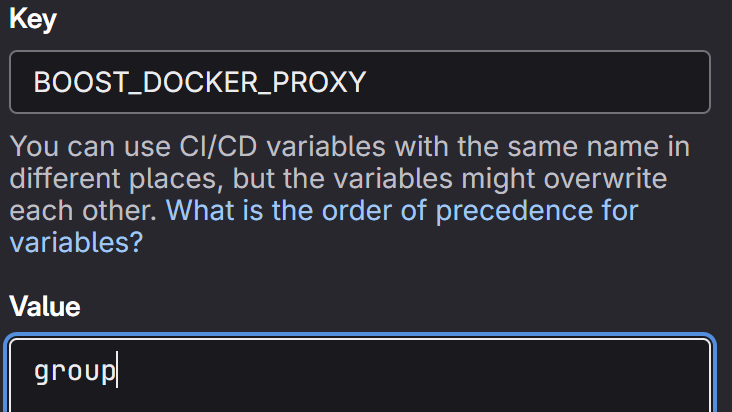
- Key:
To pull through another proxy registry instead of the GitLab dependency proxy, set the CI_DOCKER_PROXY variable to the host of that registry, and log in to it with docker login as described in Authenticate to Docker Hub.
Self-Hosted Runners
Boost Security scanners can be executed using GitLab self-hosted runners. However, additional configuration may be required to ensure proper execution.
Enabling the Privileged Mode
To run the Boost GitLab job, the GitLab runner must be able to execute Docker containers. This requires enabling the privileged mode in the runner configuration.
The configuration method depends on the type of GitLab runner agent used. Refer to the GitLab advanced configuration for detailed instructions.
For instance, when using the GitLab Kubernetes agent deployed via the GitLab Helm chart, add the following to the values.yml file:
runners:
  config: |
    [[runners]]
      [runners.kubernetes]
        # Run all containers with the privileged flag enabled.
        privileged = true
        ...