How to Create an API Key
To create a new API Key:
- Log in to your account.
- From the main dashboard, navigate to
Settings > Application Keys. - In the Key Name text box, enter the desired name for the key.
- In the Expiration dropdown, choose how long the key remains valid: Never, 30 days, 60 days, 90 days or 1 year. A duration is counted from the moment the key is created. The default, Never, creates a key that does not expire.
- Click the Add button.
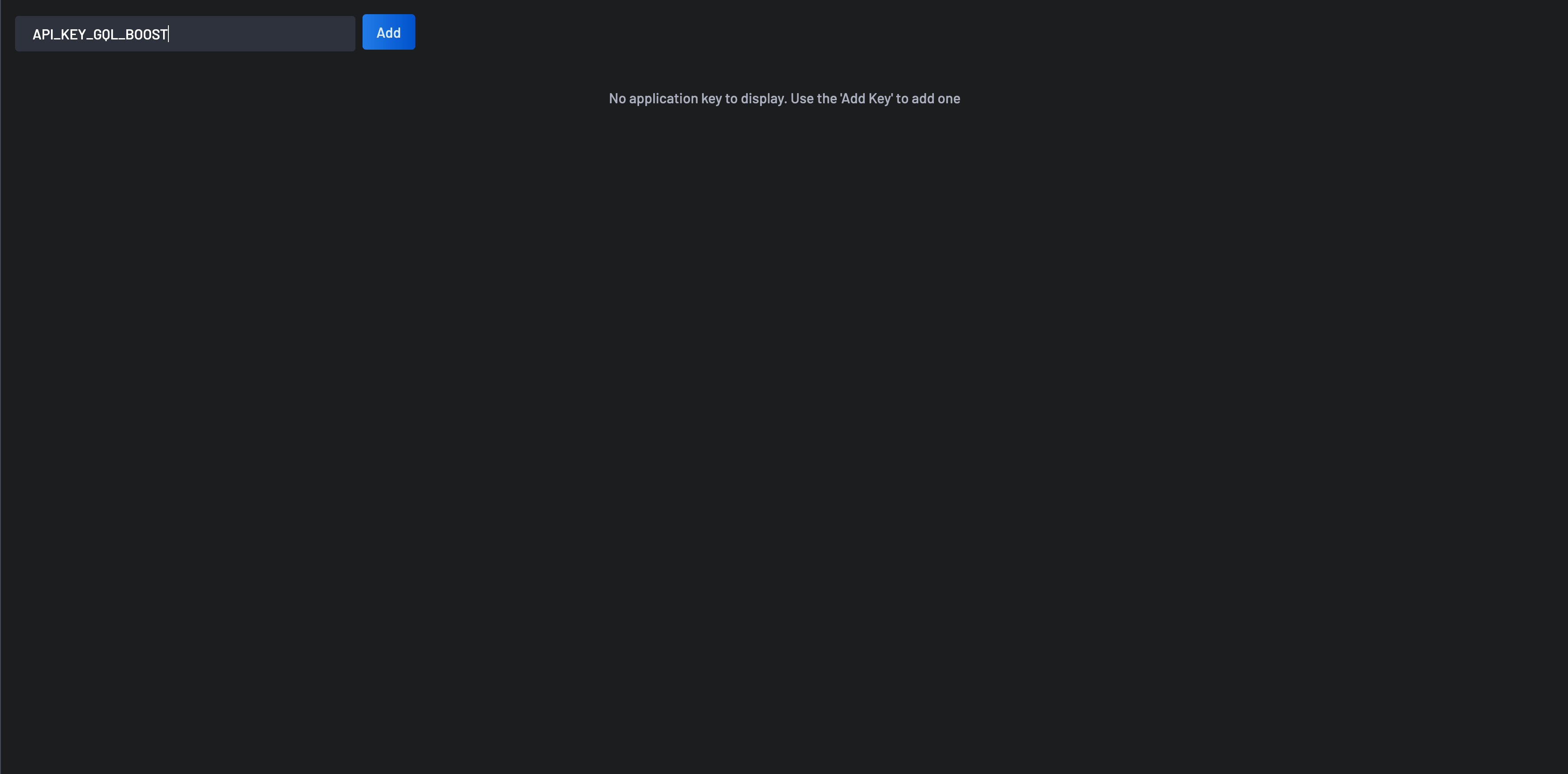
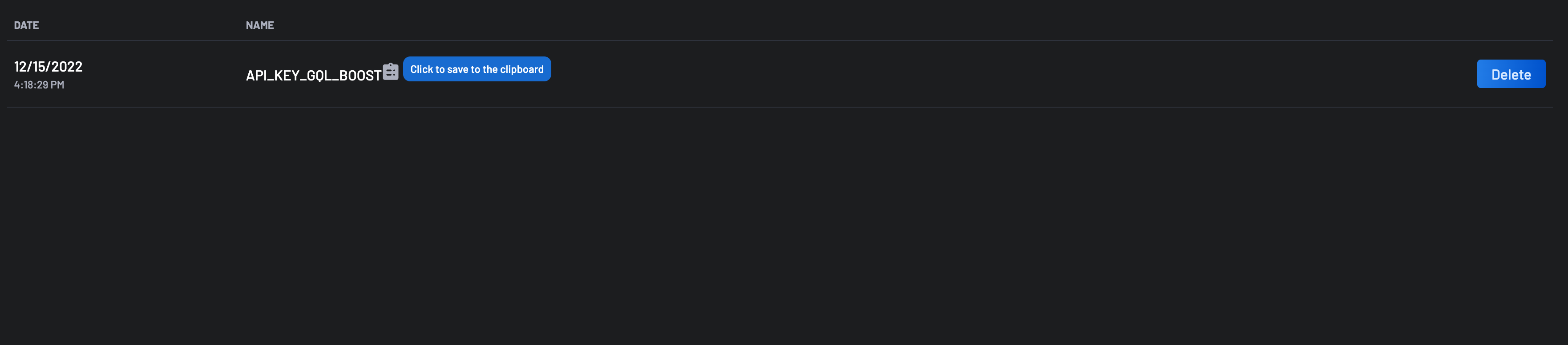
Once the key is created, a new entry is displayed with the key name selected and the clipboard icon. The clipboard enables copying the API Key value so you can configure your scanner of the GraphQL API client.
Note
This is the only time you can copy the API key value. On your next visit to the Application Keys view, you will see the application key name, its expiration and its date of creation, but you won't be able to retrieve the key value.
The expiration of a key can be changed after the key is created, including a key that was created with no expiration. See Managing API Key Expiration.