Integrating Boost Security to Power BI
Learn how to seamlessly integrate Boost Security data into your Power BI reports using a GraphQL endpoint.
Overview
Boost Security offers a powerful GraphQL API that allows you to retrieve valuable security findings directly into your Power BI dashboard. This integration enables you to analyze and visualize security data efficiently whether you are using Power BI Desktop or Power BI online.
Power BI Desktop
Follow these steps to integrate Boost Security with Power BI Desktop successfully:
- Open Power BI: Launch Power BI on your system.
-
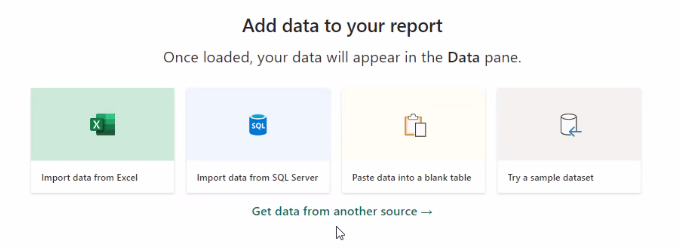
Get Data from Another Source: Click "Get data from another source" to initiate the data import process.
-
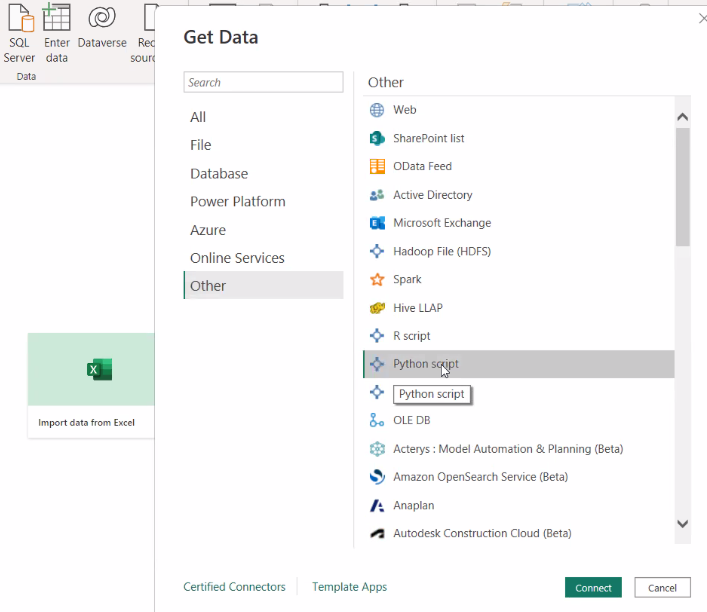
Select Python Script: Choose "Python script" from the available options as your data source.
-
Paste the Code: Paste the provided Python code from here into the designated area.
Note: Be sure to replace
<YOUR API KEY>with the API key you generated as outlined in the steps provided in the Creating an API Key section.If Python is not already installed on your system, you can install the necessary packages by running the following commands in your environment:
pip install pandas pip install matplotlib pip3 install requests -
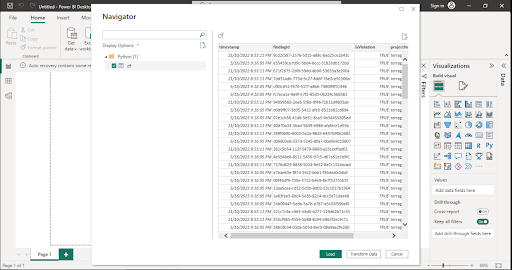
Load Data: After pasting the code and making the necessary adjustments, click "OK" to load the data.
-
Generate Tables and Charts: You can use the loaded data to create tables and charts according to your reporting requirements.

Power BI Online
Follow these steps to integrate Boost Security with Power BI Online successfully:
- Open Power BI: Access PowerBI Online App
-
Get Data: In create click on "Get data"
-
Blank Query: In the "Get Data" modal, select Blank Query.
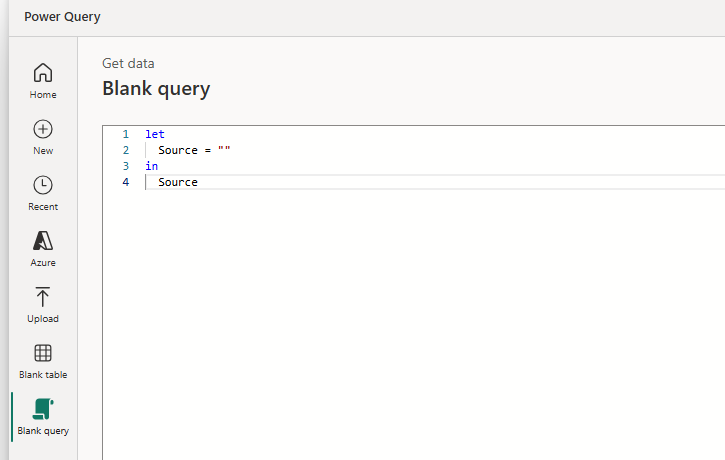
-
Paste the Code: Paste the provided M Query code from here into the designated area.
Note: Be sure to replace
<YOUR API KEY>with the API key you generated as outlined in the steps provided in the Creating an API Key section. -
Load Data: After pasting the code and making the necessary adjustments, click "Next" to load the data.
-
If a connection to Boost API wasn't configured you will be asked to configure one.

-
In the Connect to data source, click the "Connect" button
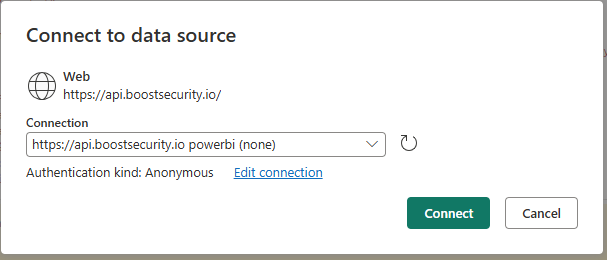
-
-
Create Report: One the data is loaded successfully you can create a new report.
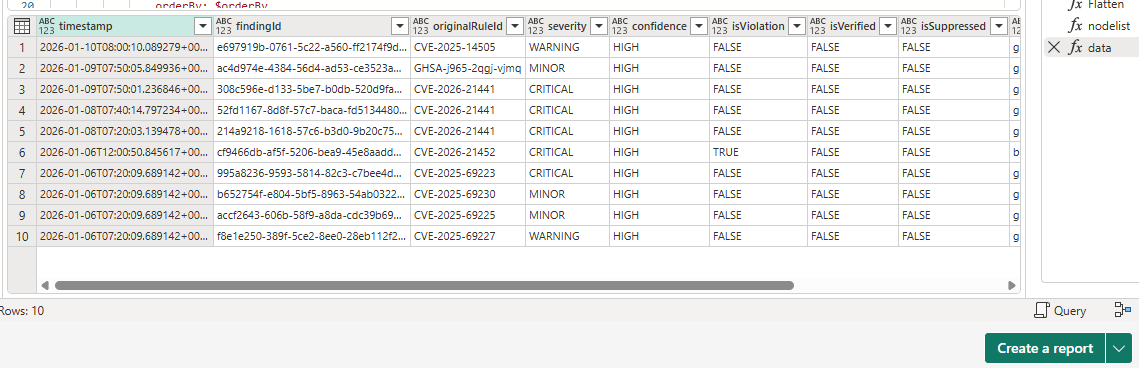
Troubleshooting
-
Wrong API Key.
If you forgot to update the
<API Key>value in the M Query script of entered a wrong value you will get an "Invalied Credentials" errors. To address the issue you MUST edit the script to replace the<API Key>with a valid entry. You MUST NOT edit the connection.