Global Scanner Configuration
The global scanner configuration page allows users to customize how scanners behave globally, across all pipelines. To open it, select Configure Scanners in the Actions menu at the top right of the Scanner Coverage page.
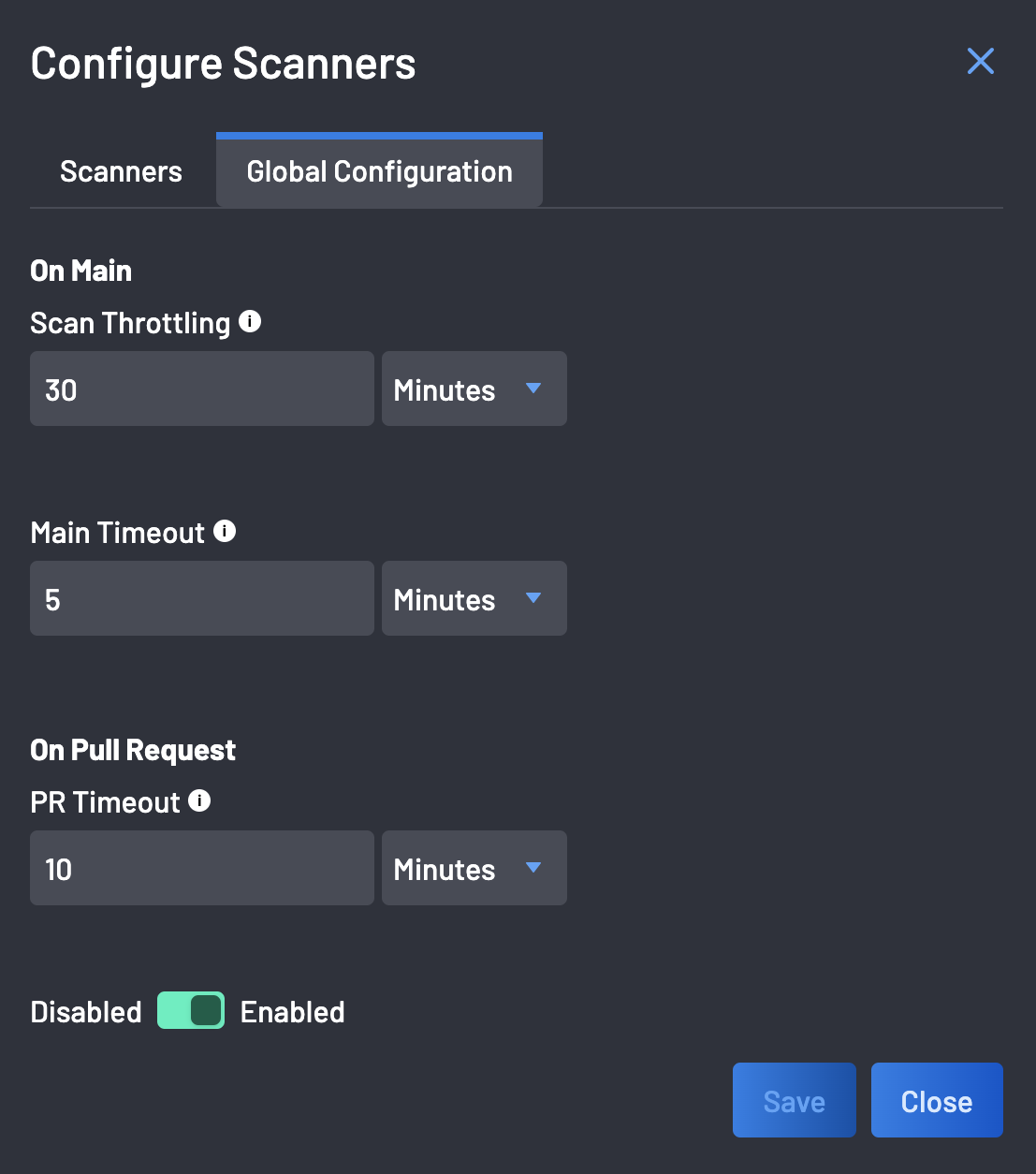
Here’s an expanded breakdown of its features:
-
Scan Throttling (On Main): Limits how often pushes to the default branch are scanned. It is a throttle, not a schedule: it never starts a scan by itself.
- 0 (no throttling): every push to the default branch is scanned. Keep this value unless your scan volume requires throttling.
- A non-zero value, for example
30 minutes: after a scan, the pushes received during that window are skipped. They are not queued and are never scanned later, and nothing is logged for a skipped push. Until the next scanned push, findings reflect an older commit, and a fix pushed inside the window doesn't close its findings. To catch up, trigger a scan on demand from the Scanner Coverage page. - The window applies per repository, not per scanner. When several scanners are provisioned on a repository at once (for example with Skip initial scan after provisioning), the first scanner's scan uses the window, and the others stay awaiting first scan until a later push is scanned. See What Skipping Means for Coverage.
- Pull request scans are not affected.
-
Main Timeout: Specifies the maximum time a scan on the main branch can take.
-
PR Timeout (On Pull Request): Sets the duration for scans triggered by pull requests.
-
Enable/Disable Scanning: This allows you to control scanning for pull requests (PRs) specifically. When enabled, scanning runs whenever a PR is detected. However, if disabled, scanning for PRs will be turned off, but it will continue to run for commits on the main branch.
A scan that runs longer than the Main Timeout or PR Timeout reports as Timeout on the Scans page. The Main Timeout and PR Timeout don't apply to manually provisioned pipelines, which use the default timeout of the Boost Security CLI. See How to Increase Scanner Timeout.