Archive Assets
The Asset Archiving feature gives users flexible control over which repositories are considered active in security posture reporting. This streamlines security tracking by excluding inactive or irrelevant assets from your security coverage metrics.
To stop tracking a repository you no longer need, archive it. Archived assets are excluded from posture reporting and lose their findings and triage data, but stay visible under the Archived filter and can be unarchived later.
Manual Archive
To archive an asset manually:
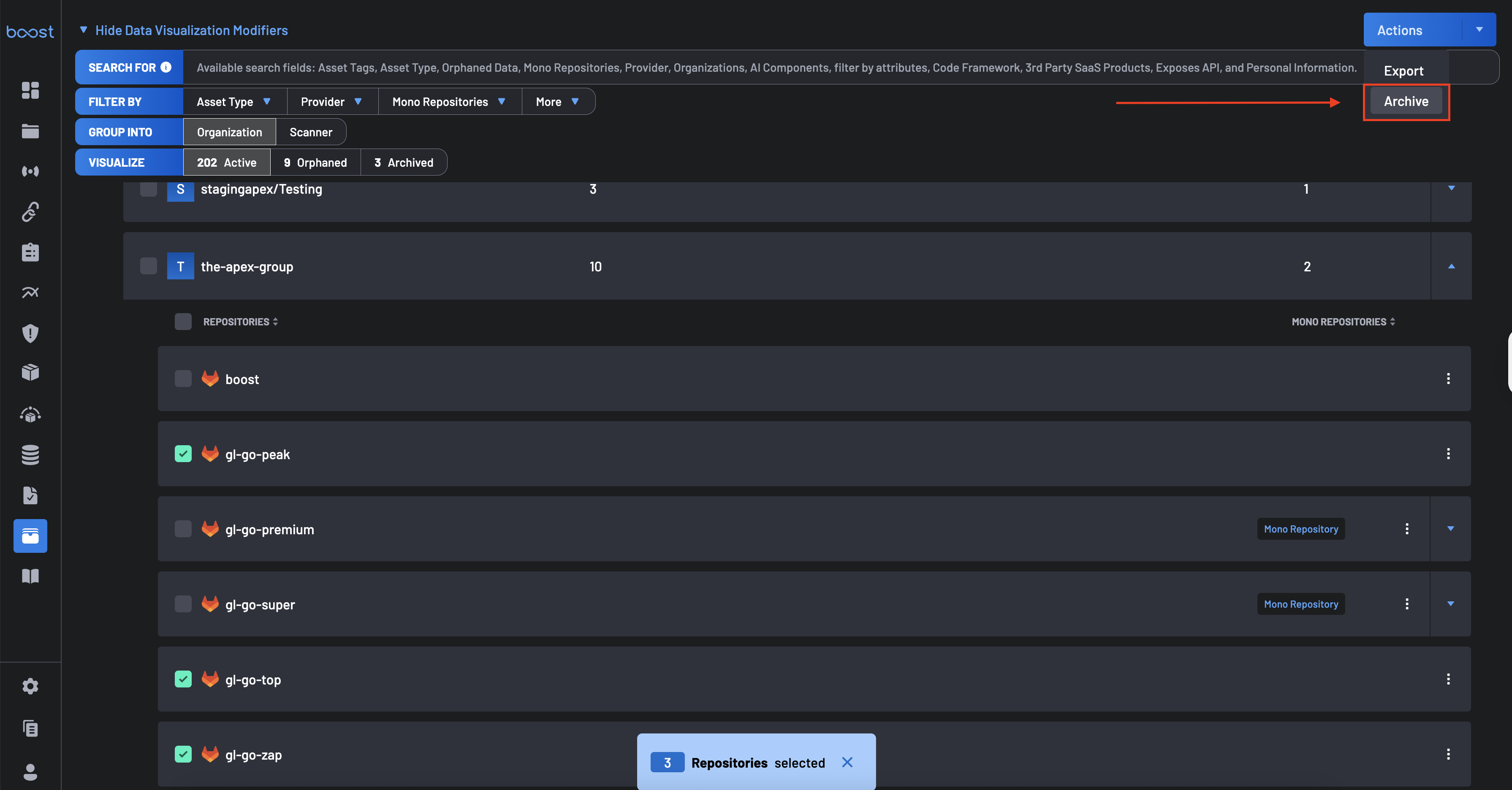
- On the Asset Management page, select the repositories you want to archive using the checkboxes.
-
Click the Actions button in the upper right corner.
-
Select Archive from the dropdown menu.
-
Confirm the action when prompted.
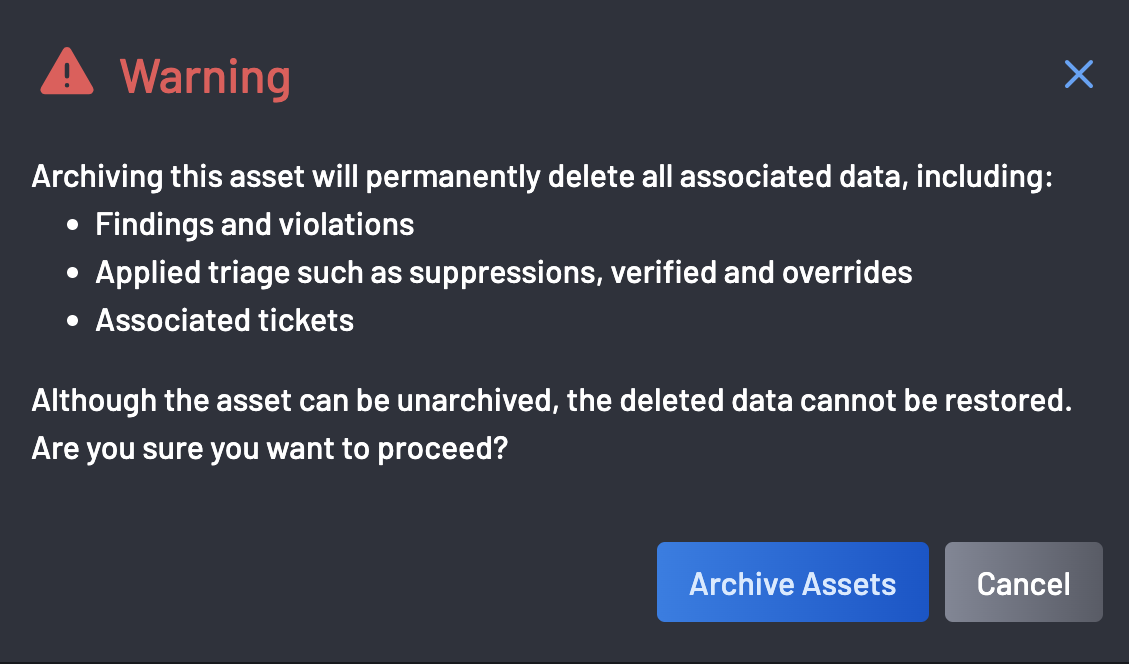
Any assets that are archived will lose all associated data including findings and violations, triage work such as suppressions, verified and overrides, associated tickets, and any assigned policies and scanners.
Archiving via Source Control
If a repository is archived within GitHub, GitLab, or Azure DevOps, Boost will automatically detect this status change and archive the repository accordingly. This ensures that inactive assets in your SCM do not contribute to your security posture metrics in Boost.
Key Capabilities
Boost’s Asset Archiving feature provides two archiving methods:
- Manual Archiving: Directly archive repositories within Boost’s interface, regardless of their status in the source control system.
- Automatic Archiving via Source Control: Boost automatically respects the archived status of repositories from supported Source Code Management (SCM) systems, including GitHub, GitLab, and Azure DevOps (ADO). When a repository is archived in the SCM, it is automatically excluded from Boost’s active posture reporting.
Unarchiving Assets
Only manually archived assets can be unarchived within Boost and such assets only have default coverage and will create all new findings based on the current new scan results. Assets archived via source control cannot be unarchived directly in Boost. To reinstate these repositories, update their status in the SCM.
Important
Once an asset is unarchived (either from the SCM or directly within Boost), it will behave as a newly discovered asset. Only the default scanners will be provisioned, and the asset will inherit policies from its parent. Findings will be generated based on the asset’s current state, with no retention of data or history from its pre-archived state.
To unarchive an asset:
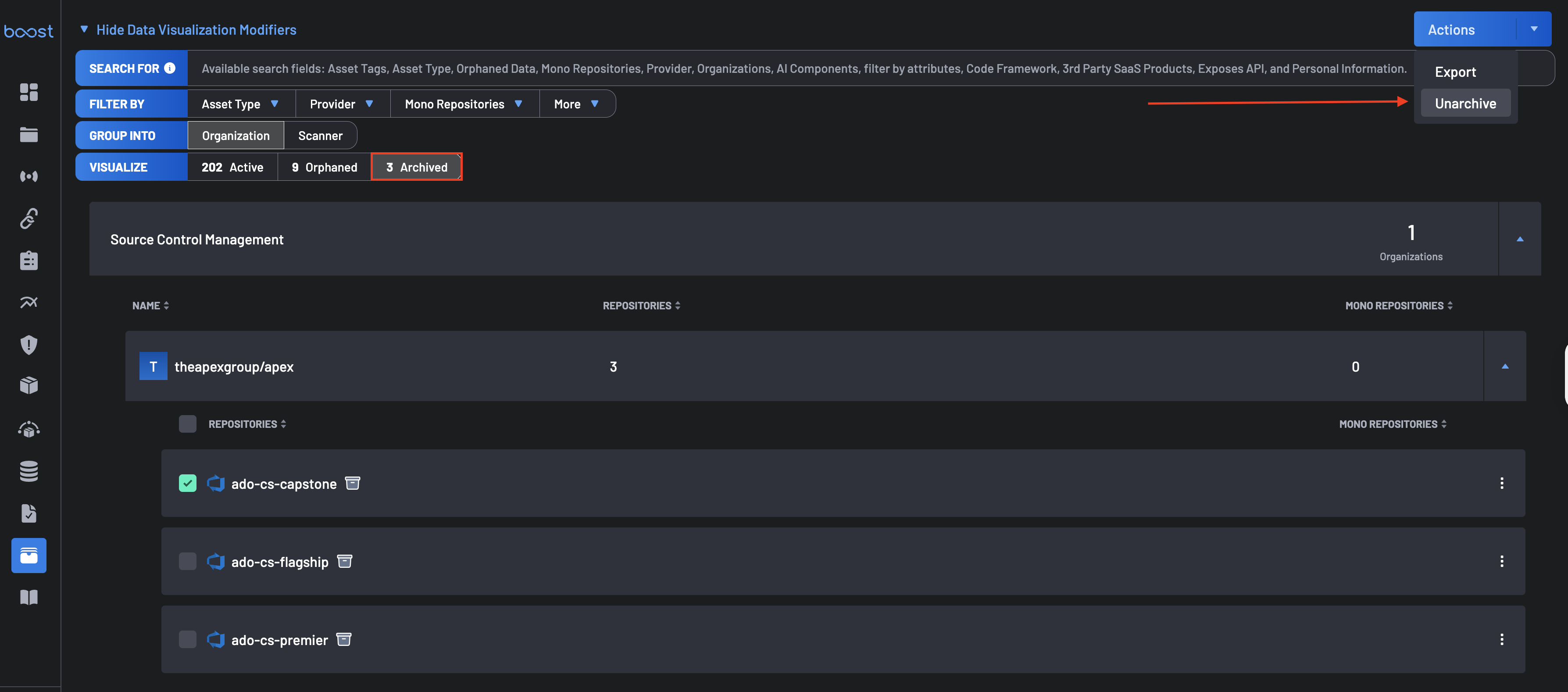
- Navigate to the Visualization tab and click the Archived filter to display archived assets.
- Select the asset you wish to unarchive and click the Actions button in the top-right corner.
- From the dropdown menu, select Unarchive.
- Upon successful completion, a confirmation message will appear indicating that the asset has been unarchived.
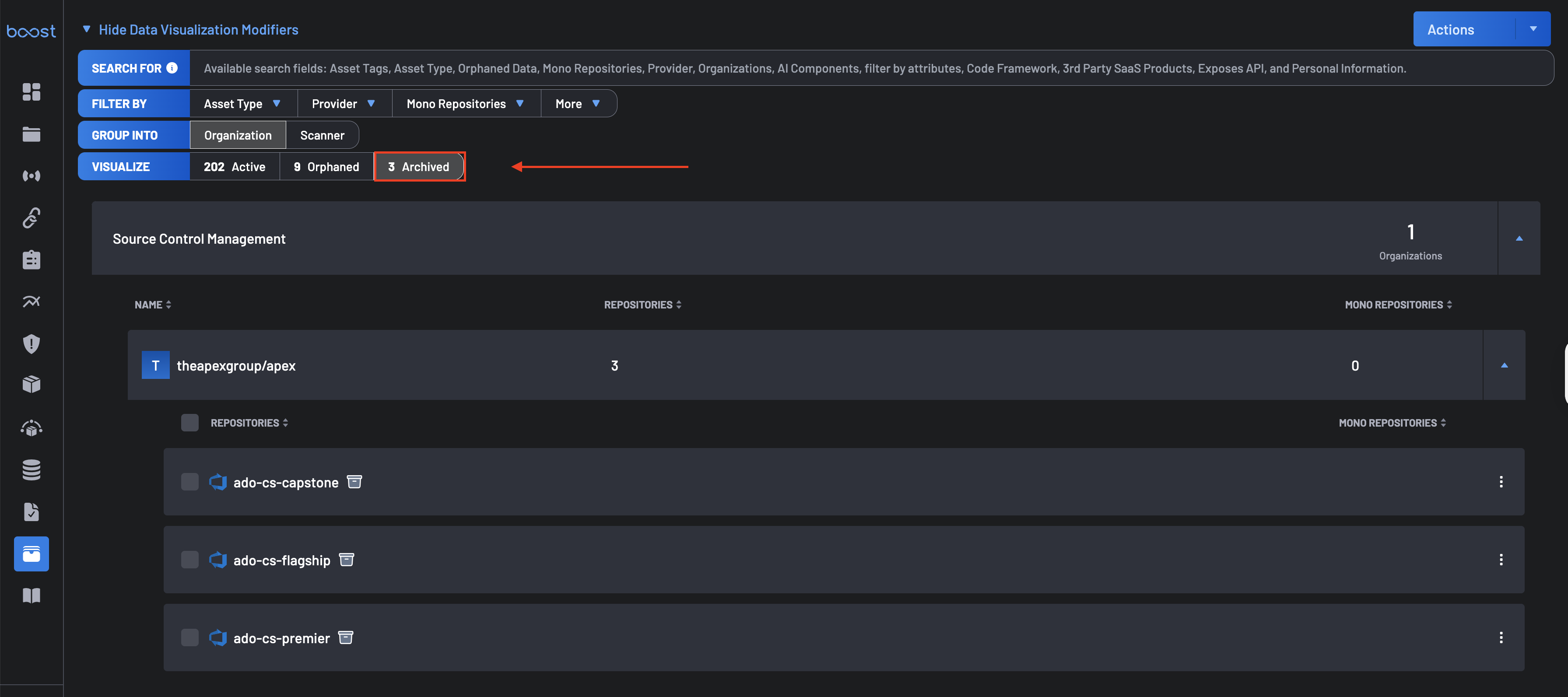
Visualizing Archived Assets
Archived assets are separated from active assets and can be easily tracked using the Archived filter visualization tab on the Asset Management page. This provides clear visibility into both your current security landscape and your excluded repositories.