Install Endpoint Protection with the VS Code Extension
The BoostSecurity IDE extension for VS Code installs Endpoint Protection for the developer workstation. It also installs Boost's MCP server, which helps agentic coding assistants validate packages and reduce software supply chain risk directly from the IDE.
Requirements
Before installing the extension, make sure you have:
- VS Code installed, or any IDE based on VS Code (e.g. Cursor, Windsurf, and VSCodium).
- Internet access to the Visual Studio Marketplace.
- A Boost account or a Boost API key.
Install the Extension
- Open VS Code.
- Open the Extensions view.
- Search for BoostSecurity.
- Select the BoostSecurity extension from the Visual Studio Marketplace.
- Click Install.
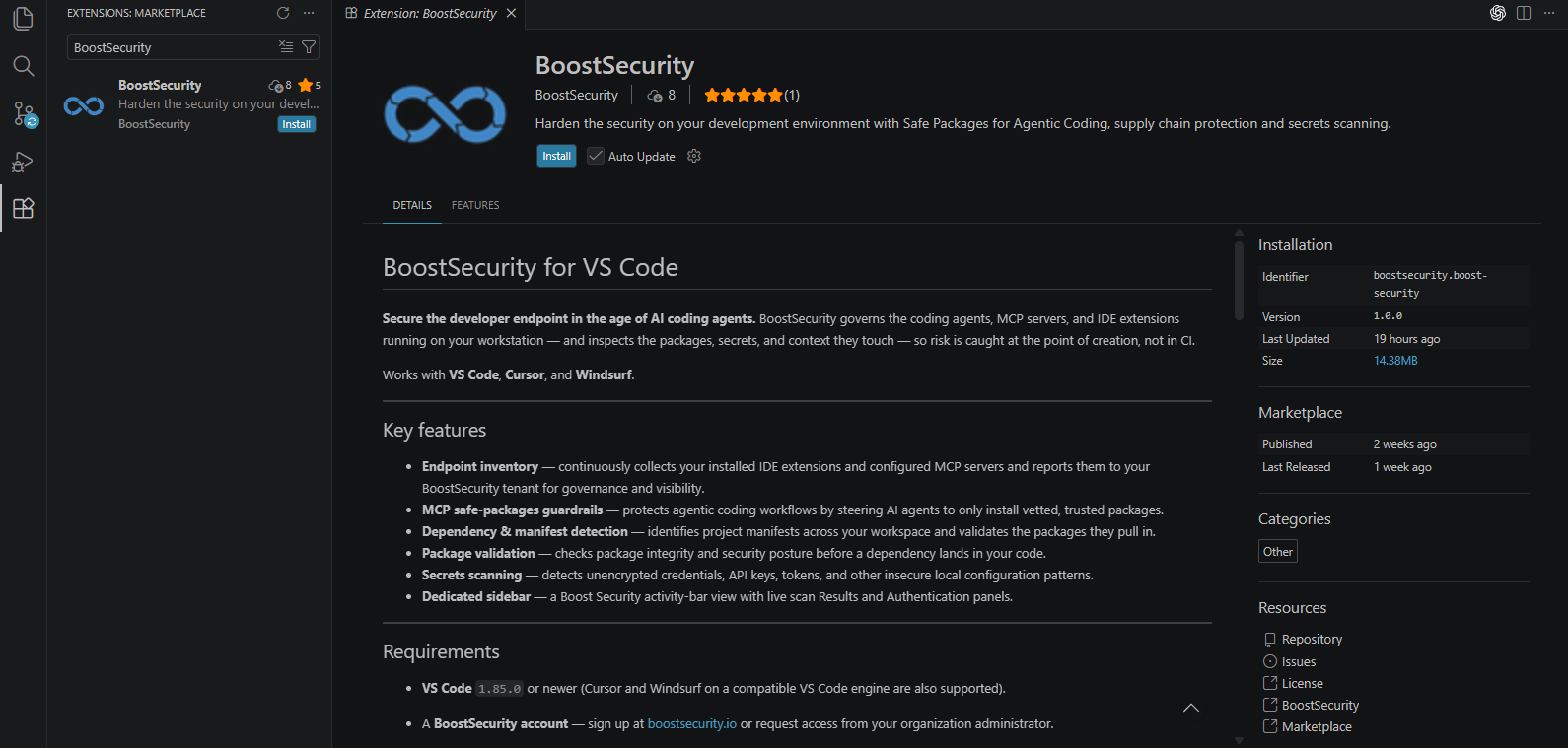
After installation, the BoostSecurity extension is available in VS Code and can be used to sign in to BoostSecurity.
Sign In
Open the BoostSecurity extension in VS Code and choose one of the available sign-in options.
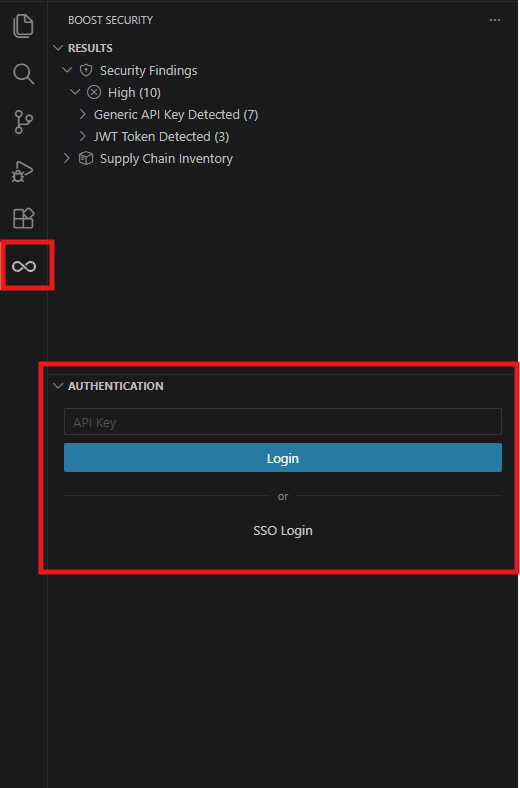
Sign In with an API Key
Use this option if your organization authenticates the extension with an API key.
- Get an API key from one of the following sources:
- Generate one yourself by following How to Create an API Key.
- Request one from a member of your AppSec team.
- Open the BoostSecurity extension or run the IDE command
>Boost Security: Login with API Key - Paste the API key and click 'Login'
Note
Store the API key securely. If you generate the key yourself, BoostSecurity only shows the key value once.
Sign In with SSO
Use this option if your organization authenticates users with Single Sign-On (SSO).
- Confirm that you have an active BoostSecurity account.
- Open the BoostSecurity extension or run the IDE command
>Boost Security: SSO Login - Complete the browser-based SSO flow.
- Return to VS Code after authentication completes.
MCP Server
Installing the VS Code extension also installs Boost's MCP server for more secure agentic coding. The MCP server helps AI coding assistants validate packages before they are introduced into a project and can provide authenticated access to BoostSecurity findings when configured with an API key.
For more information, see BoostSecurity MCP Server and Installation & Configuration.