How to Limit a Scanner to Specific Files
A Scanner Policy is a named, reusable set of directives that govern how the scanners it is assigned to behave. Its File pattern matching directive restricts a scanner to the files it is meant to cover: once the policy is assigned to a scanner on an asset, that scanner only runs when the scan's changed files include a match for one of the patterns — for a pull request, any file changed by any of its commits. Otherwise the scan is skipped and a passing check is posted to your source code management (SCM) provider.
This guide walks through creating a policy with that directive, assigning the policy to scanners, and removing it.
1. Create a Scanner Policy
-
Navigate to the Scanner Policy page under Scanner Coverage in the left navigation.
-
Click the New Policy button.
-
Click the name field and give the policy a name that describes what it targets, such as
Terraform onlyorTrivy SCA/SBOM.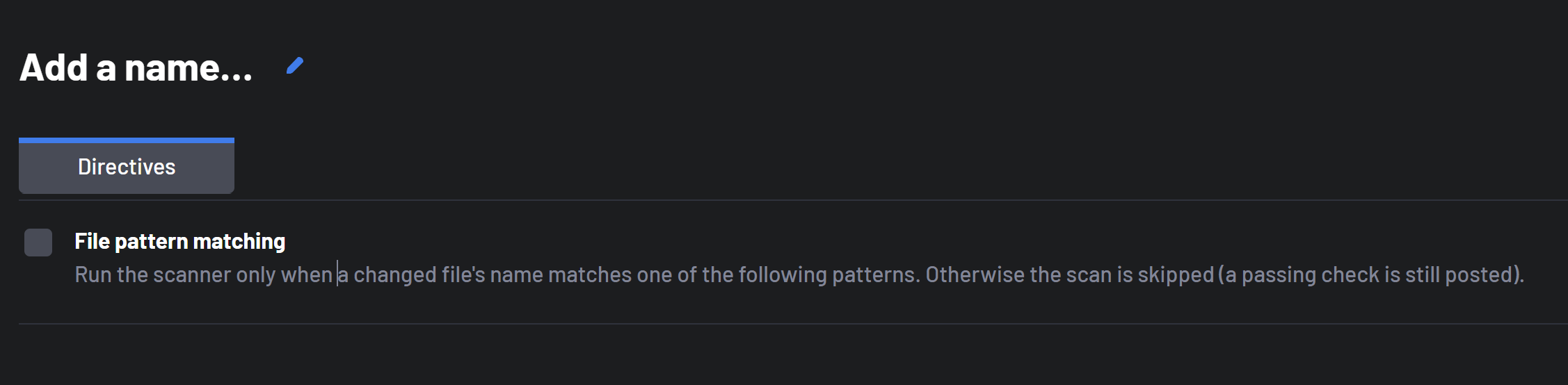
-
On the Directives tab, check the File pattern matching directive.
-
In the File patterns field, enter one pattern per line. Patterns are matched against file names at any depth in the repository and are case-sensitive — see Pattern Syntax for the supported wildcards.
For an Infrastructure-as-Code scanner such as Checkov, the patterns might be:
*.tf
*.tf.json
*.yaml
*.yml
Dockerfile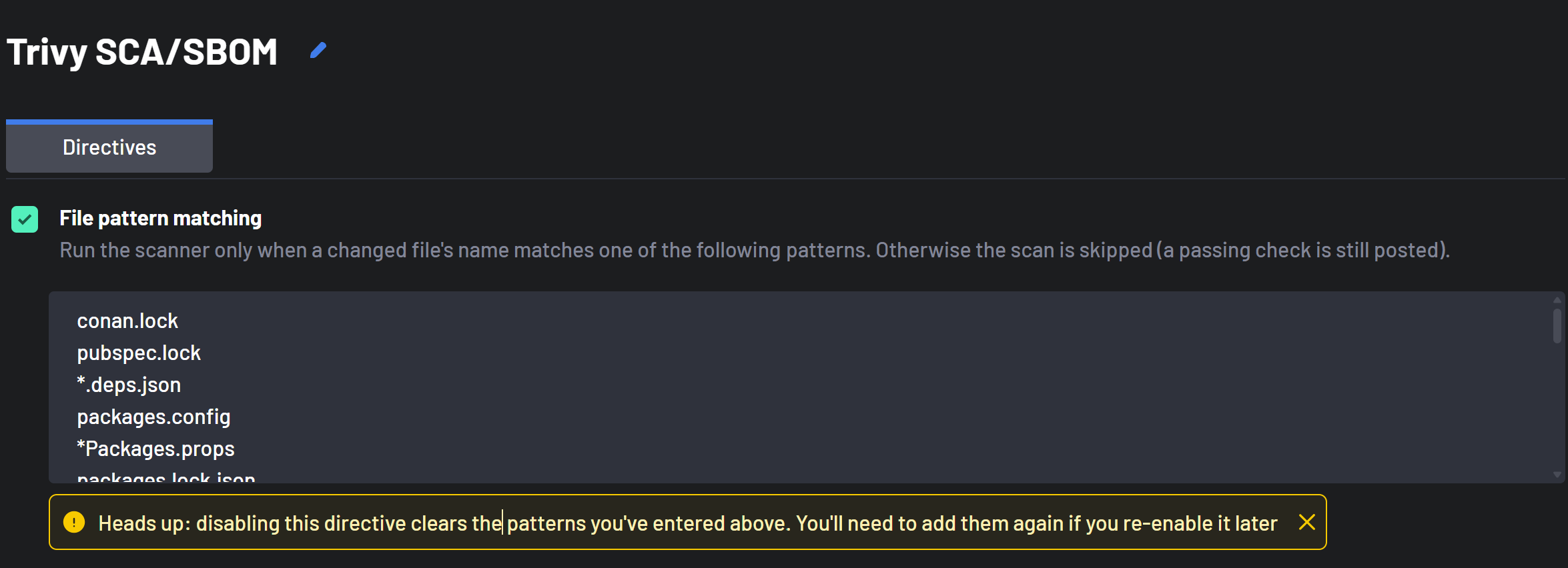
-
Click Save.
Warning
Unchecking the File pattern matching directive clears the patterns you entered. You will need to enter them again if you re-enable the directive later.
2. Assign the Policy to Scanners
You can assign a policy while provisioning scanners, or apply it to scanners that are already provisioned without provisioning them again.
-
Navigate to the Scanner Coverage page.
-
Select the organizations or repositories whose scanners you want to change. At least one must be selected.
-
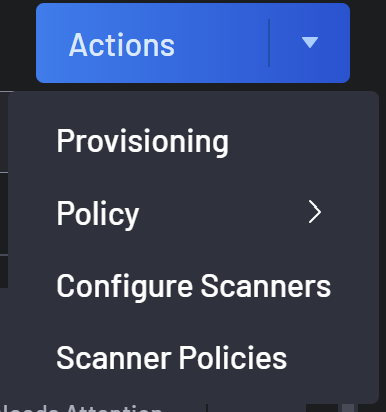
Click the Actions button, then Scanner Policies.
-
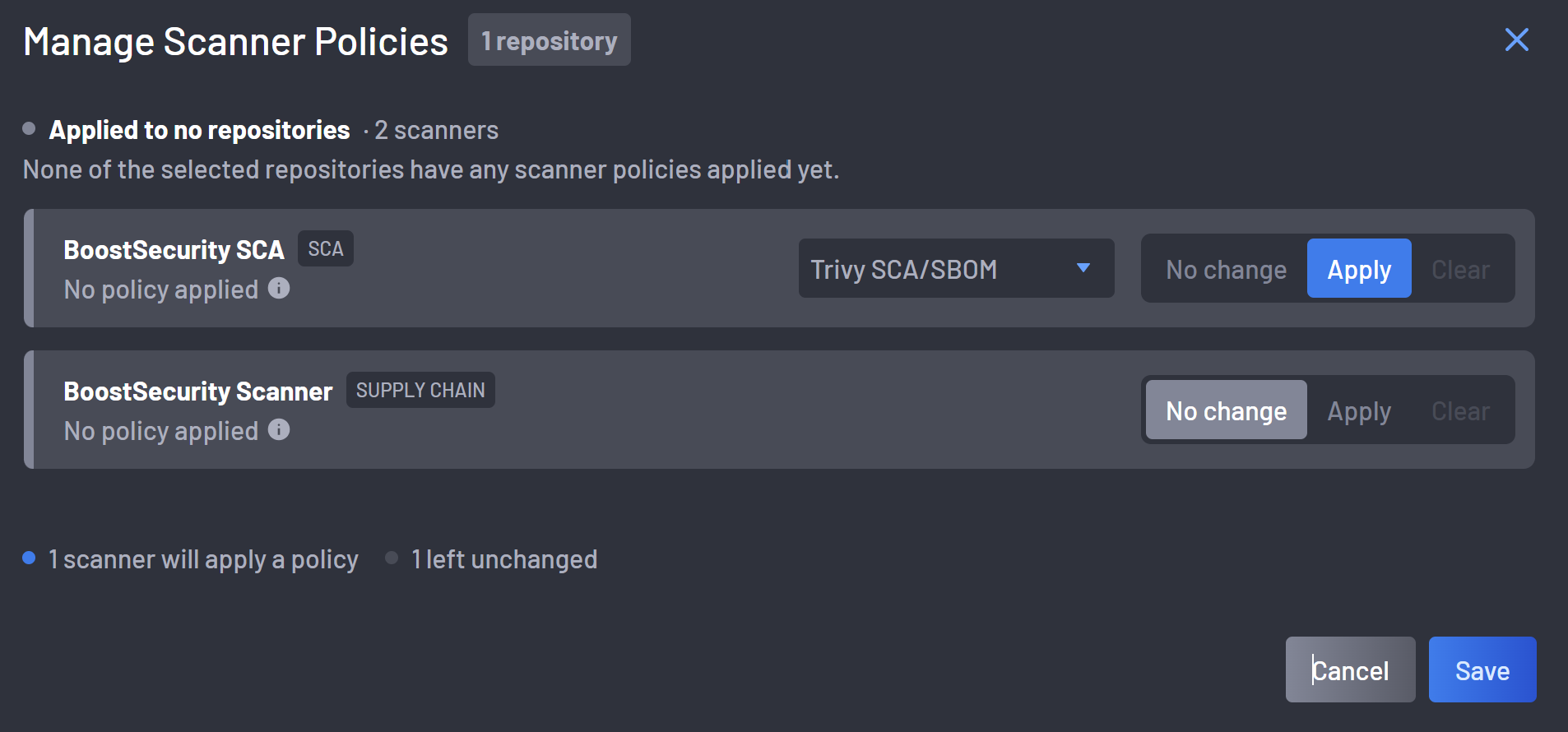
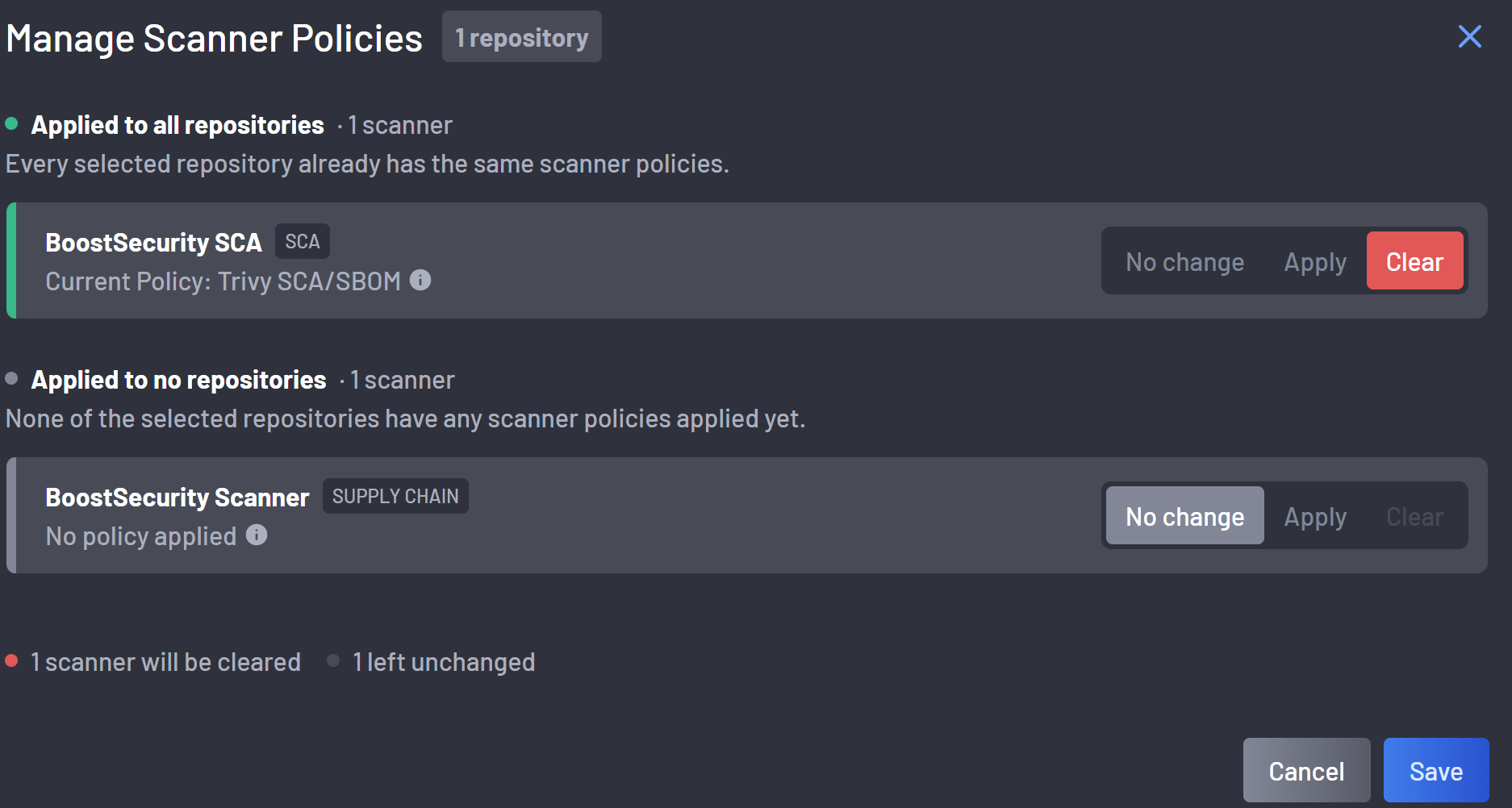
The Manage Scanner Policies modal groups the scanners found across your selection by how widely a policy is already applied — Applied to all repositories, Applied to some repositories, or Applied to no repositories.
-
For each scanner you want to change, click Apply and pick the policy from the dropdown. Leave the other scanners on No change.
-
Review the change summary at the bottom of the modal, then click Save. Saving assignments from this modal does not trigger new scans; the policy applies to the next commit-triggered scan.
-
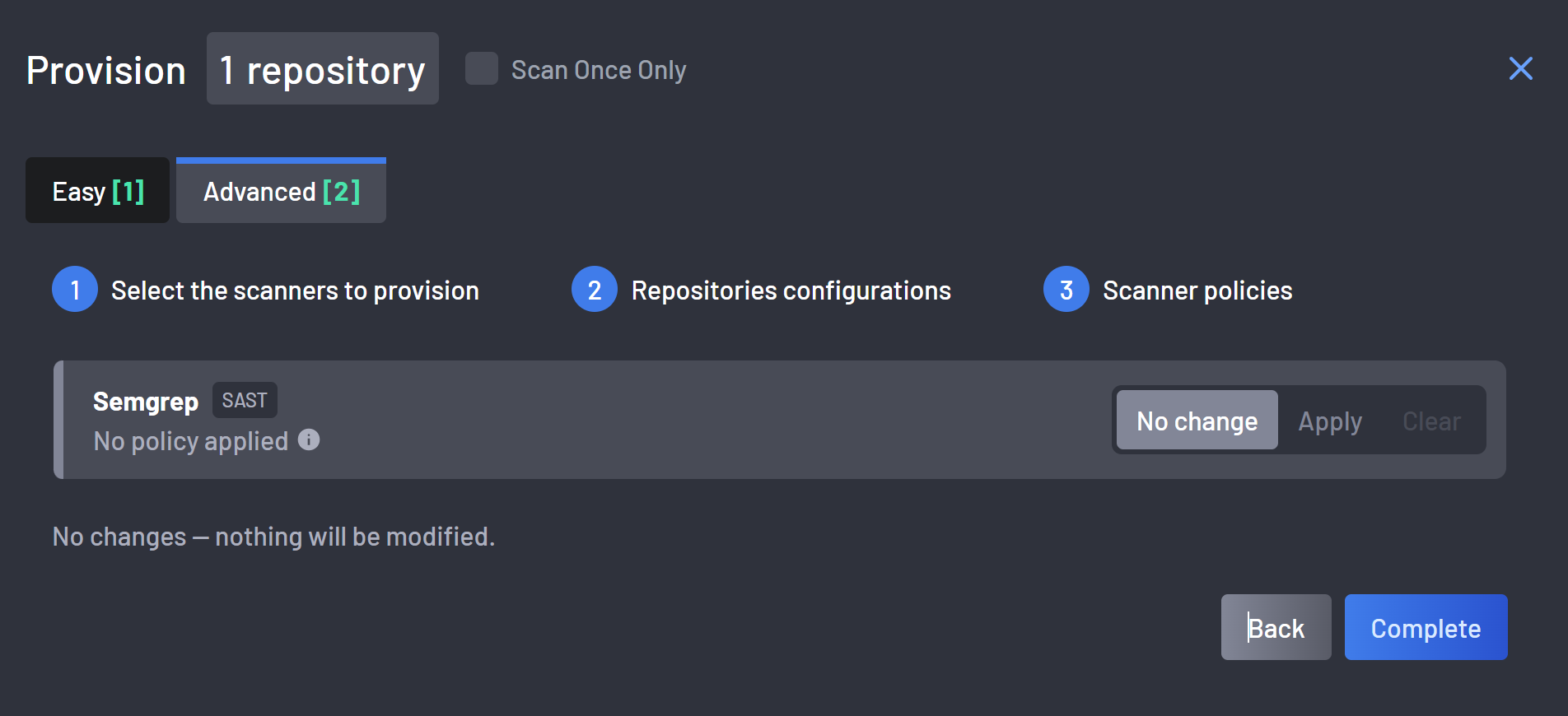
Start provisioning scanners and select the Advanced tab.
-
Complete the Select the scanners to provision and Repositories configurations steps.
-
On the Scanner policies step, each newly provisioned scanner shows its current state — Current Policy: {name}, Policies vary across repositories, or No policy applied.
-
For each scanner you want to change, click Apply and select a policy. Every scanner set to Apply must have a policy selected before you can finish.
-
Click Complete.
Note
Scanner policies are only offered for scanners provisioned through Zero Touch Provisioning. A scanner that cannot take a policy shows no policy control.
3. Remove a Policy from a Scanner
-
Navigate to the Scanner Coverage page and select the organizations or repositories to change.
-
Click the Actions button, then Scanner Policies.
-
Click Clear for each scanner that should no longer have a policy.
-
Click Save. Those scanners now run on every commit-triggered scan again.
4. Edit or Delete a Policy
-
Navigate to the Scanner Policy page.
-
Open the actions menu on the policy's row and choose Edit or Delete.

-
Editing a policy's patterns changes the behaviour of every scanner it is assigned to, on the next commit-triggered scan.
Note
A policy that is still assigned to scanners cannot be deleted. Its row shows how many scanners it covers under Assigned Scanners, and the Delete action stays greyed out until that count reaches zero.
Click the count to open the Scanner Coverage page filtered to that policy, then use the Manage Scanner Policies modal as in step 3 to clear the policy from the scanners it lists. Once the count reaches zero you can delete the policy.
If the count does not reach zero after you have cleared everything that page lists, it also covers scanners on archived or orphaned assets, which Scanner Coverage does not show — see Assigned Scanners.
5. Confirm the Behaviour
Open a pull request that touches none of the files covered by the policy. On the Scans page, the scanner's scan is marked Skipped by rules with the reason "No files matched this scanner.", and the pull request receives a passing boostsecurity - <scanner> check titled Nothing to scan.
Manually triggered scans, full scans, and the first scan of an asset always run, regardless of any assigned policy.