Scanner Policies
A Scanner Policy is a named, reusable set of directives that govern how the scanners it is assigned to behave. A policy is defined once and can then be assigned to any number of scanners across your assets.
Currently, one directive is available: File pattern matching, which restricts a scanner to the files it is meant to cover. Further directives will extend what a Scanner Policy can govern, and will apply to existing policies without changing how they are created or assigned.
Scanner Policies let teams keep noisy or slow scanners targeted at the files they actually cover. For example, an Infrastructure-as-Code scanner can be limited to Terraform and Kubernetes manifests, and an SCA scanner to dependency lock files, so that pull requests touching neither do not wait on a scan that has nothing to analyze.
Scanner Policies are managed from the Scanner Coverage → Scanner Policy page.
Note
Scanner Policies are a separate concept from Policies. A Policy governs which findings become violations and what happens to them; a Scanner Policy governs how the scanners it is assigned to behave.
The Scanner Policies Page
The Scanner Policies page lists the defined policies by Name, with the number of scanners each one governs under Assigned Scanners. Each row's actions menu exposes an Edit and a Delete action, and the New Policy button creates one. When no policy exists yet, the page displays "No scanner policies found".

A policy consists of a name and the directives enabled on it. Names are required and must be unique; saving a policy whose name is already in use is rejected.
Assigned Scanners
The Assigned Scanners column reports how many scanners currently carry the policy, as "1 scanner" or "4 scanners".
A non-zero count is a link, and following it opens the Scanner Coverage page filtered to that policy. A count of zero is plain text.
Note
The filtered page can show fewer assets than the count, or none at all. The count can include scanners on archived or orphaned assets, which the Scanner Coverage page does not list. An empty result there is expected rather than an error.
Deleting a Policy
A policy must be cleared from every scanner it is assigned to before it can be deleted. While its Assigned Scanners count is non-zero, the Delete action in the row's actions menu is greyed out, and its tooltip gives the reason:
This policy is still assigned to 13 scanners. Deprovision them in Scanner Coverage before deleting it.
This count can include scanners on archived or orphan assets, which Scanner Coverage does not list.
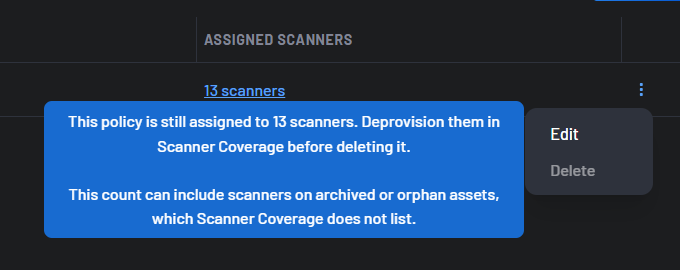
Those scanners must be deprovisioned, or the policy cleared from them, before the policy can be deleted — see How to Limit a Scanner to Specific Files. The Delete action becomes available once the count reaches zero.
Directives
A policy's behaviour comes from the directives enabled on its Directives tab. Each directive is independent: it is turned on with a checkbox, and enabling it reveals the settings it needs. A policy with no directive enabled has no effect on the scanners it is assigned to.
File pattern matching is currently the only directive available.
The File Pattern Matching Directive
This directive restricts a scanner to a set of files. A scanner governed by it runs only if the files changed by the scan include a match for one of its patterns — for a pull request, any file changed by any of its commits. If nothing matches, the scan is skipped and a passing check is reported back to the source code management (SCM) provider.
The directive is described on the Directives tab as:
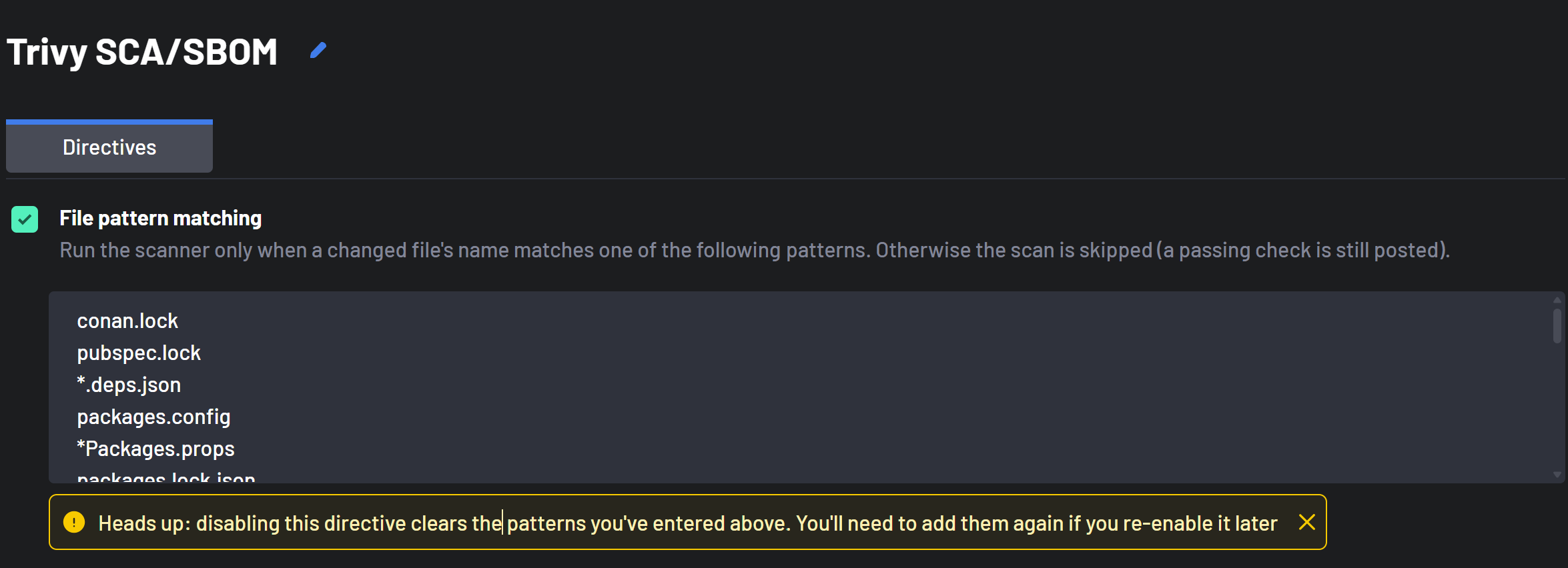
Run the scanner only when a changed file's name matches one of the following patterns. Otherwise the scan is skipped (a passing check is still posted).
Enabling it reveals the File patterns field. Each line holds one pattern, and a file matching any of them is enough for the scanner to run.
Warning
Disabling the File pattern matching directive clears the patterns entered for it. They must be entered again if the directive is re-enabled later.
Pattern Syntax
A pattern is matched against the file name of each changed file — not against its full path — so a pattern matches at any depth in the repository. *.tf matches main.tf as well as infra/prod/eu-west-1/main.tf.
Matching is case-sensitive: Dockerfile does not match dockerfile.
The following wildcards are supported:
| Wildcard | Meaning | Example | Matches |
|---|---|---|---|
* |
Any sequence of characters, including none | *.tf |
main.tf, modules/network/variables.tf |
? |
Exactly one character | v?.yaml |
v1.yaml, v2.yaml |
[seq] |
Any single character in the sequence | [Mm]akefile |
Makefile, makefile |
A sequence can also be negated as [!seq], matching any single character not in it. Characters with no special meaning are matched literally, which is enough to target a specific file by name:
| Pattern | Matches | Does not match |
|---|---|---|
Dockerfile |
Dockerfile, services/api/Dockerfile |
dockerfile, Dockerfile.dev |
*.lock |
poetry.lock, backend/Cargo.lock |
lockfile.txt |
package*.json |
package.json, package-lock.json |
packages.config |
requirements*.txt |
requirements.txt, requirements-dev.txt |
requirements.in |
The following are not supported:
**has no special meaning. It is unnecessary, because every pattern already matches at any depth.- A pattern containing a
/never matches, since patterns are compared against file names rather than paths. - Patterns are not regular expressions.
When Patterns Are Evaluated
File patterns are evaluated on scans triggered by a commit, against the changed files of that pull request or pushed commit range. Scans with no set of changed files to compare against are never skipped.
| Scan | Result |
|---|---|
| Scanner with no policy assigned | Runs |
| Pull request scan, a file changed by any commit in the pull request matches | Runs |
| Pull request scan, no changed file matches | Skipped |
| Push scan on a monitored branch, a changed file matches | Runs |
| Push scan on a monitored branch, no changed file matches | Skipped |
| Manually triggered scan | Runs |
| Full scan or first scan of an asset | Runs |
Skipped Scans
A scan skipped by the File pattern matching directive is still recorded, so it remains visible on the Scans page.
On the Scans page the scan carries a neutral Skipped by rules status, and expanding it shows the reason "No files matched this scanner."
In the SCM, Boost Security reports a passing check named boostsecurity - <scanner> with the title Nothing to scan. On GitHub this is a check run with a success conclusion; on GitLab it is a commit status with a success state. A skipped scan therefore never blocks a pull request that requires the check to pass.
Availability
Scanner Policies are offered only for scanners provisioned through Zero Touch Provisioning (ZTP). The Boost Security Scanner accepts a policy only where ZTP is enabled for the organization or SCM integration. A scanner that cannot take a policy shows no policy control in the provisioning wizard or in the Manage Scanner Policies modal.
Assigning a Policy
A policy's directives take effect once the policy is assigned to a scanner on an asset. Assignments are made either in the Scanner policies step of advanced provisioning, or without re-provisioning through the Manage Scanner Policies modal on the Scanner Coverage page. See How to Limit a Scanner to Specific Files for the full procedure.
Both surfaces use the same per-scanner control with three states — No change, Apply, which reveals a policy dropdown, and Clear, which removes the assignment — together with a summary of the pending changes.
The name of the assigned policy is displayed under the scanner on the Scanner Coverage page, alongside the scanner's other configuration.