Managing API Key Expiration
An API Key can be given an expiration so that it stops authenticating on a chosen date. Expirations are managed from the Settings > Application Keys view, which requires administrator rights.
An expiration can be moved earlier or later at any time, but it can never be removed: once a key has an expiration, it always has one. Set the expiration when you create the key, or add one to an existing key at any time.
Viewing expirations
The Expiration column of the Application Keys list shows the date on which each key stops working, or Never for a key that does not expire. Dates are displayed in the time zone of your browser.
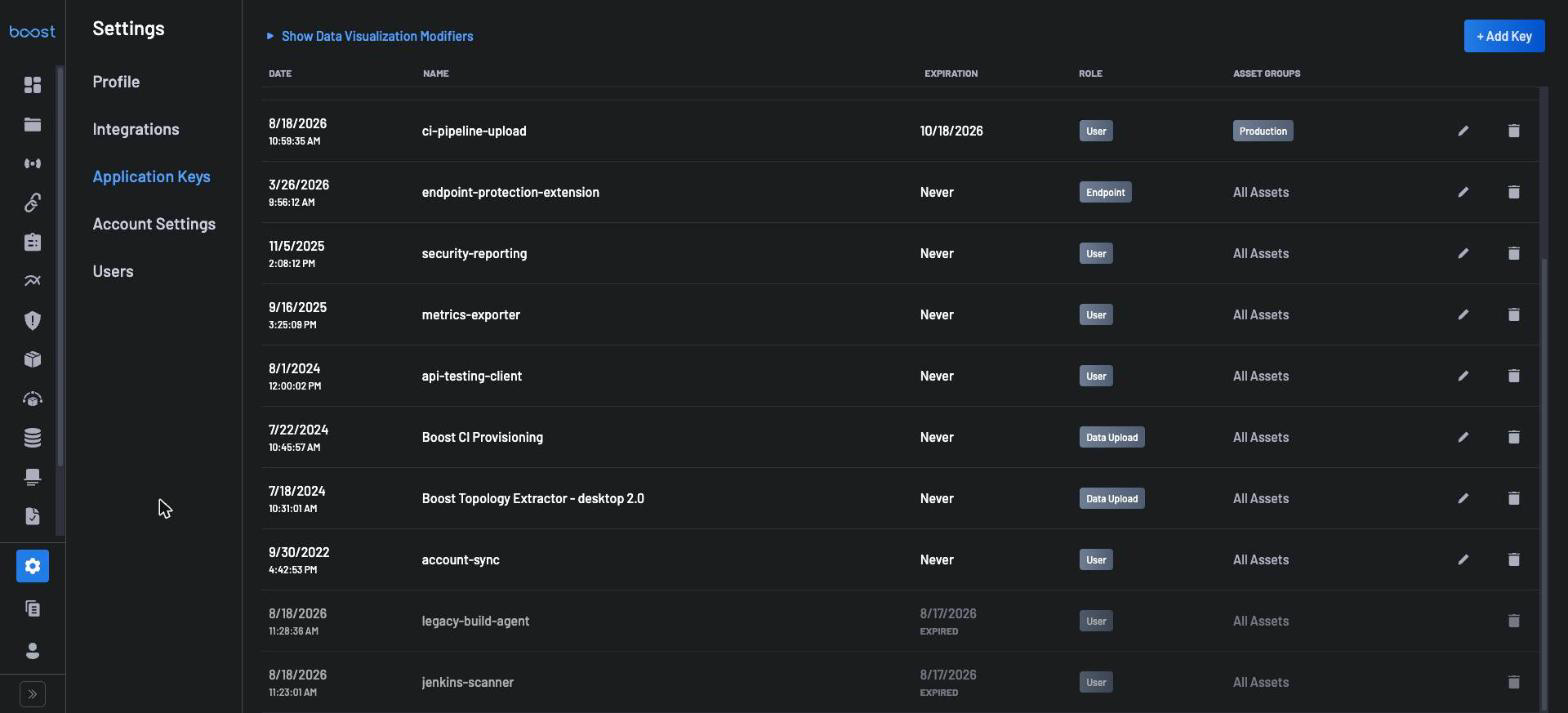
Changing the expiration of a key
- From the main dashboard, navigate to
Settings > Application Keys. - On the row of the key you want to change, click the pencil icon in the actions column, at the right end of the row.
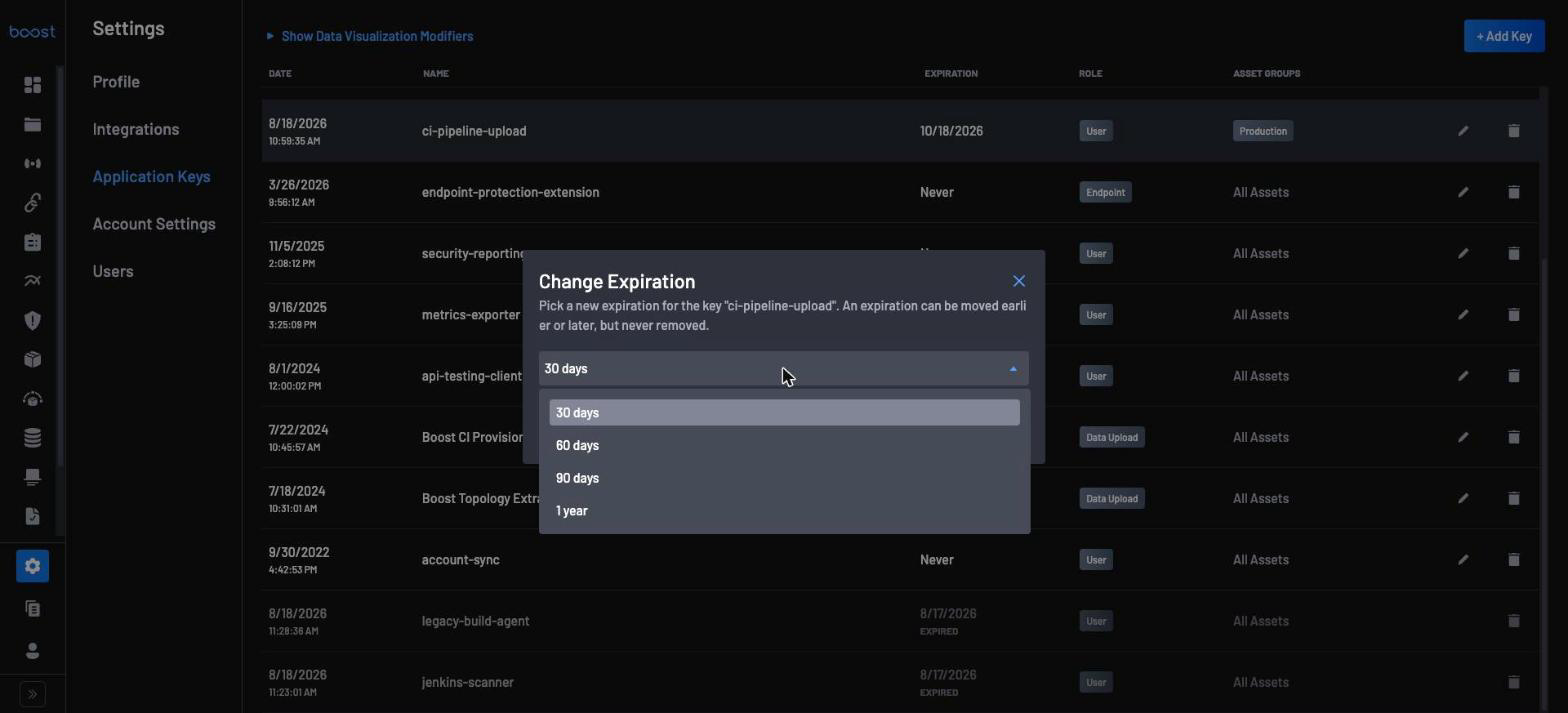
- In the Change Expiration dialog, select 30 days, 60 days, 90 days or 1 year. The duration is counted from the moment you confirm, so choosing 30 days always moves the expiration to 30 days from now, whether that is earlier or later than the current one.
- Confirm the dialog to apply the new expiration.
A key that currently never expires also has a pencil icon: this is how a key already in use is given its first expiration. Because an expiration cannot be removed, the Change Expiration dialog offers no Never option.
Creating a key, changing its expiration and deleting it are all recorded on the Audit page. The entry for a change records that the key was updated, not the expiration value that was set.
What happens when a key expires
An expired key stops authenticating, and requests made with it are rejected. Any scanner, integration or API client still configured with the key stops working until it is given a valid key.
An expired key is not deleted. It remains in the Application Keys list, sorted below the keys that are still valid, with its row dimmed and an EXPIRED label under its expiration date. It no longer has a pencil icon, because an expired key cannot be given a new expiration and cannot be revived. To restore access, create a new key and configure your clients with it.
Expired keys are never removed automatically. Delete them from the list when you no longer need the record.
Warning
An expired key does not stop working instantly. It can continue to authenticate for up to roughly one hour past its expiration: Boost Security exchanges an API key for a short-lived access token that stays valid for one hour, and services validate that token rather than the key itself. Choose expiration dates with that window in mind. The same delay applies when you delete a key.