Account Settings
The Account Settings tab of the Settings page holds options that apply to your whole account. They affect every message Boost Security posts to your source code management platform, on every repository and supported platform.
Display noboost Comment in PR
Boost Security's messages normally explain how to flag a finding that is not a real issue. Pull request comments include a Not a finding? line, and check summaries and main branch comments include a bullet about marking False Positives. This setting controls whether that guidance is included.
It is on by default. This row has no Save button, so the change applies as soon as you switch it.
Note
Turning it off only removes the guidance from Boost Security's messages. The noboost comment itself keeps working. See How can I ignore a finding? for what it does.
PR Comment Custom Text
When a scan produces findings that your policy treats as violations, Boost Security posts the result to your source code management platform as a comment or a check summary. You can add your own text to those messages, such as a link to your internal security policy, the team to contact, or the process to request an exception. You can also choose whether that text appears before or after Boost Security's own message.
The custom text and its placement are set once for the account and apply to every message Boost Security posts, on every supported platform.
Setting the Custom Text
-
Navigate to the Settings page and select the Account Settings tab.
-
In the PR comment custom text row, enter your text in the text area. The text is limited to 1000 characters.
-
Below the text area, set Text placement to Before or After. The default is After.
-
Click Save.

The Text placement toggle stays disabled while the text area is empty, because there is nothing to place. It becomes available as soon as you type, before you save.
Moving the toggle only takes effect when you click Save. This also applies when you come back later to change the placement of text you have already saved.
Where the Custom Text Appears
One setting applies to every message. The placement cannot be set per message or per platform.
| Message | Platforms |
|---|---|
| Pull request comment | Azure DevOps, Bitbucket, Gitea, GitHub, GitLab |
| Completed check summary | GitHub |
| Main branch comment | Bitbucket, GitLab |
What Before and After Mean
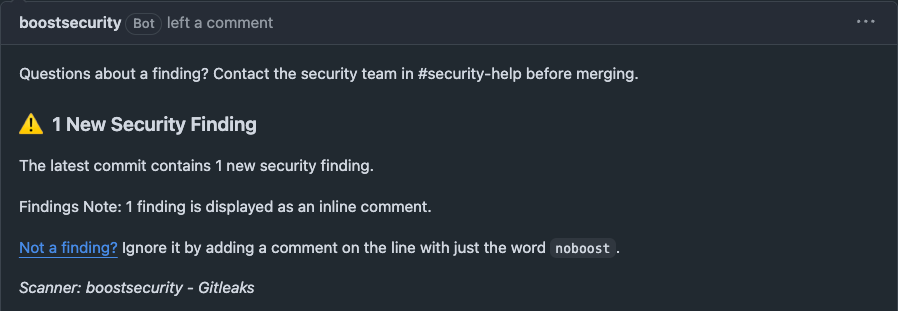
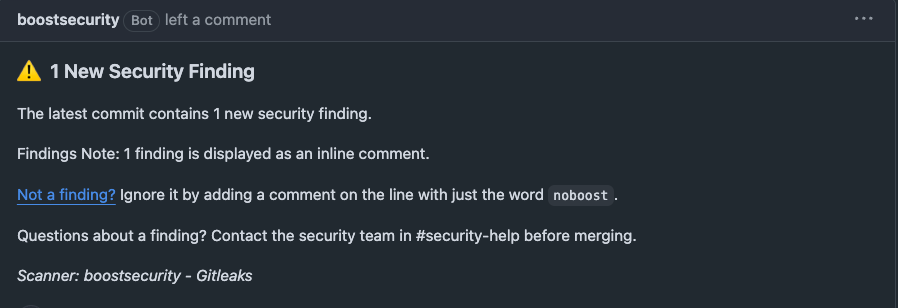
Before and After place the custom text relative to Boost Security's own message, not relative to the whole comment.
Pull Request Comments
- Before: above the new security findings heading.
- After: below the findings table and the
noboostline that follows it, and above the suppressed findings section and the scanner footer.
Before
After
Completed Check Summary
- Before: at the top of the summary, above the finding count.
- After: below the guidance list, and above the notice shown when a commit has too many findings to annotate.
Main Branch Comments
- Before: at the top of the comment body, below the title.
- After: below Boost Security's guidance list and above the findings tables. This is after Boost Security's message, not at the end of the comment.
Note
The custom text belongs to the new findings section of a pull request comment. A pull request comment that reports only fixed findings, or only suppressed findings, carries no custom text under either placement.