How to Block Merges on a Failed Boost Security Check
When a policy rule uses the Fail the check action, Boost Security reports a failed check on the pull request (merge request on GitLab) whose changes violate the rule. The failed check stops the pull request from merging only when your source code management (SCM) provider is configured to require it.
This guide configures the default branch of a repository so that a pull request with a failed Boost Security check can't be merged, on GitHub, GitLab, Bitbucket and Azure DevOps.
Before You Start
- The repository is scanned by Boost Security.
- The policy assigned to the repository has at least one rule with the Fail the check action. See How to Create a New Policy.
- You have the administrator permissions needed to change the repository's branch settings in your SCM.
Requirements on Every SCM
Whatever your SCM, two settings on the default branch work together:
- The default branch is protected. Nobody can push directly to it, so every change reaches it through a pull request. Without this, a direct push bypasses the Boost Security check entirely.
- The Boost Security check is required. A pull request can't be merged until the Boost Security check succeeds. A failed or still-running check blocks the merge.
Boost Security reports one check per scanner, named boostsecurity - <scanner>, for example boostsecurity - boostsecurityio/scanner or boostsecurity - boostsecurityio/gitleaks. Require the check of every scanner whose findings should block a merge.
Note
- A scan skipped by a scanner policy reports a passing check, so it never blocks the merge.
- In a monorepo, the checks of the same scanner in different sub-repositories share a name, so you can't require the check of one specific sub-repository.
GitHub
On GitHub, a branch ruleset protects the default branch and requires the Boost Security checks. See About rulesets in the GitHub documentation.
- In the repository, go to Settings → Rules → Rulesets, then click New ruleset → New branch ruleset.
- Name the ruleset and set its Enforcement status to Active.
- Under Target branches, click Add target and select Include default branch.
- Under Branch rules, select:
- Restrict deletions
- Require a pull request before merging
- Block force pushes
-
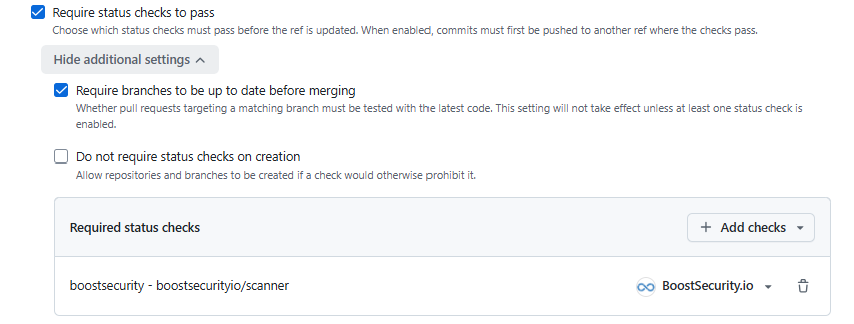
Select Require status checks to pass, then:
- Optionally, select Require branches to be up to date before merging, so that the checks run against the latest code of the default branch.
- Click Add checks, and enter the name of the check of each scanner that should block a merge, for example
boostsecurity - boostsecurityio/scanner. - Make sure the source shown next to each check is BoostSecurity.io, so that only Boost Security can report it.
-
Under Bypass list, add only the roles or teams that must be able to merge without the checks, or leave it empty. Anyone in the bypass list can merge a pull request whose Boost Security check fails.
- Click Create.
GitLab
On GitLab, Boost Security reports its checks as commit statuses on the merge request's pipeline. A protected default branch and the Pipelines must succeed merge check block a merge request whose Boost Security check fails.
-
Protect the default branch. In the project, go to Settings → Repository → Protected branches, and protect the default branch with:
- Allowed to merge: the roles that can merge merge requests, for example Maintainers.
- Allowed to push and merge: No one.
- Allowed to force push: off.

See Protected branches in the GitLab documentation.
-
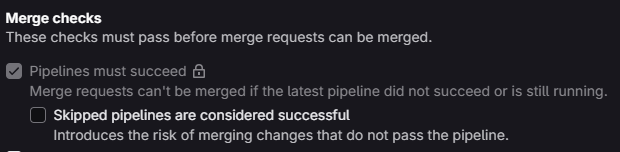
Require the pipeline to succeed. Go to Settings → Merge requests, and under Merge checks:
- Select Pipelines must succeed.
- Leave Skipped pipelines are considered successful cleared.
-
Click Save changes.
Note
When Pipelines must succeed is set for the whole group or instance, it appears selected and locked in the project settings.
Bitbucket
On Bitbucket, Boost Security reports its checks as build statuses on the pull request's last commit. A branch restriction on the default branch blocks direct pushes, and its merge checks block a pull request whose Boost Security build fails. See Suggest or require checks before a merge in the Bitbucket documentation.
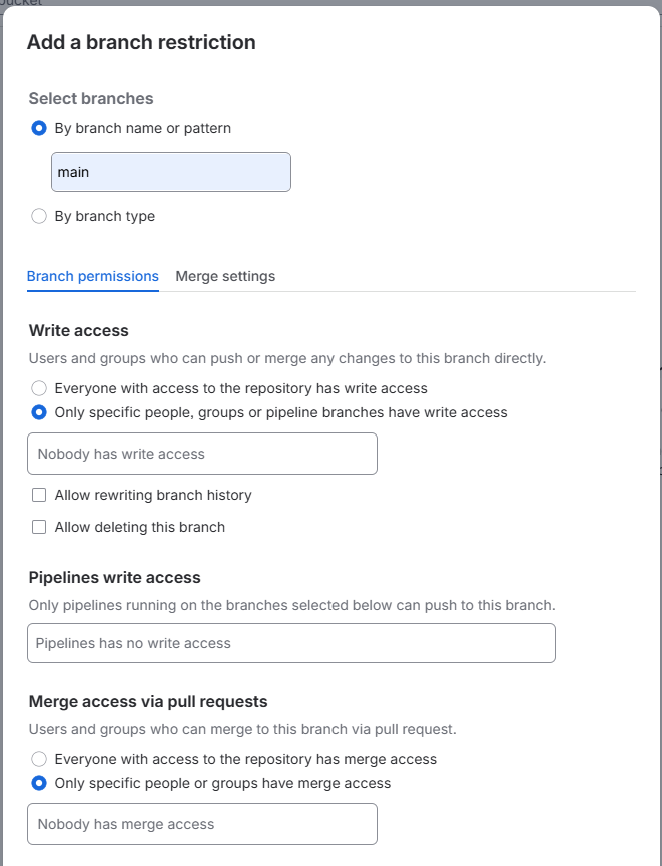
- In the repository, go to Repository settings → Workflow → Branch restrictions, then click Add a branch restriction.
- Under Select branches, select By branch name or pattern and enter the name of the default branch, for example
main. -
On the Branch permissions tab:
- Under Write access, select Only specific people, groups or pipeline branches have write access, and leave the list empty, so nobody pushes directly to the branch.
- Leave Allow rewriting branch history and Allow deleting this branch cleared, and leave Pipelines write access empty.
- Under Merge access via pull requests, select the people or groups who can merge pull requests.
-
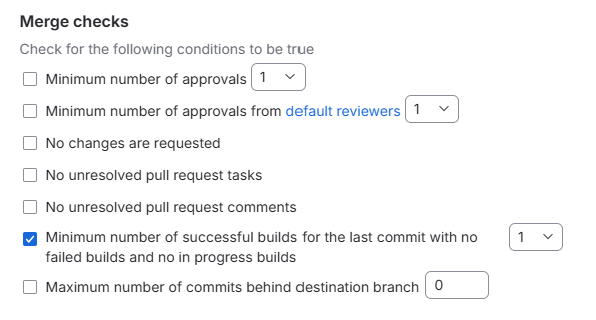
On the Merge settings tab, under Merge checks:
- Select Minimum number of successful builds for the last commit with no failed builds and no in progress builds, and set the number to
1. Since no build can be failed or in progress, every Boost Security build must succeed, whatever the number of scanners.
- Select Minimum number of successful builds for the last commit with no failed builds and no in progress builds, and set the number to
-
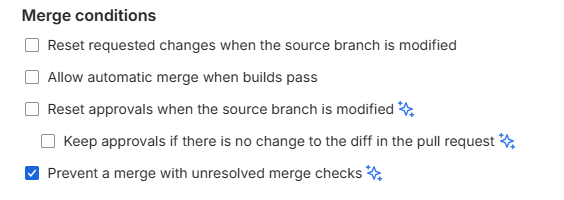
Under Merge conditions, select Prevent a merge with unresolved merge checks.
-
Click Save.
Note
Prevent a merge with unresolved merge checks requires the Bitbucket Cloud Premium plan. On other plans, the merge checks only warn and can't block the merge.
Azure DevOps
On Azure DevOps, Boost Security reports one status per scanner on the pull request. The branch policies of the default branch require a successful status from each scanner that should block a merge. See Branch policies and settings in the Azure DevOps documentation.
A branch with at least one required policy can't be pushed to directly: every change goes through a pull request, which protects the default branch.
- In the project, go to Project settings → Repositories, select the repository, then open the Policies tab.
- Under Branch Policies, select the default branch.
-
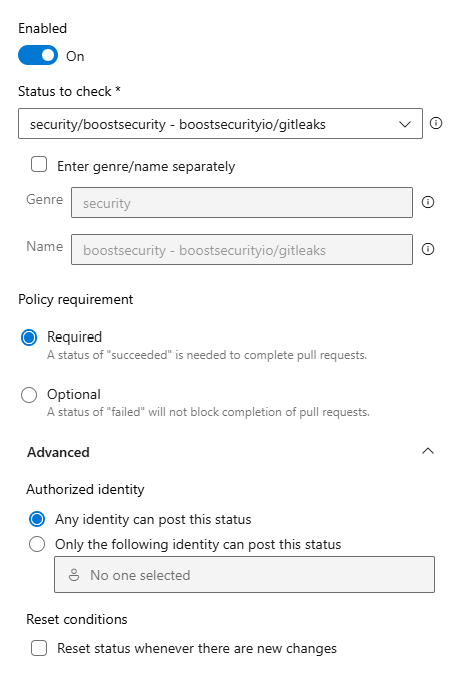
Under Status Checks, click + to add a status policy, and set:
- Status to check: the status of the scanner, for example
security/boostsecurity - boostsecurityio/gitleaks. Boost Security statuses use the genresecurityand the nameboostsecurity - <scanner>. - Policy requirement: Required, so that a status other than succeeded blocks the pull request.
- Expand Advanced, then set:
- Authorized identity: Any identity can post this status. Optionally, to harden the policy, select Only the following identity can post this status and choose the identity of your Boost Security integration: the user who owns the personal access token (PAT), or the service principal of the app registration.
- Reset conditions: leave Reset status whenever there are new changes cleared. When it is selected, the Boost Security status never completes.
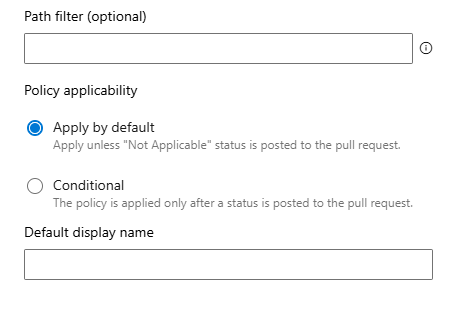
- Path filter: leave it empty, so the policy applies to every pull request.
- Policy applicability: leave Apply by default selected, so a pull request is blocked until the scanner reports a successful status.
- Status to check: the status of the scanner, for example
-
Click Save.
- Repeat steps 3 and 4 for each scanner that should block a merge.