Install Endpoint Protection with Microsoft Intune
Microsoft Intune can deploy Endpoint Protection to Windows devices as a Windows app (Win32). Intune runs the install script from the Endpoint Protection Installation page on each device. The script installs the Boost endpoint updater, which installs Endpoint Protection and keeps it up to date.
This page covers the steps specific to Intune. For deployment tokens, script options, and what the script installs, see Install Endpoint Protection with a Script.
Requirements
Before you deploy Endpoint Protection with Intune, make sure you have:
- Windows devices enrolled in Intune that are Microsoft Entra joined, Microsoft Entra hybrid joined, or Microsoft Entra registered.
- A Microsoft Entra device group for the devices to protect, and a smaller group for a pilot.
- 64-bit (x64) Windows in the Pro, Enterprise, or Education edition. Windows on Arm is not supported.
- The Windows install and uninstall scripts,
boost-endpoint-install.ps1andboost-endpoint-uninstall.ps1, downloaded from the Endpoint Protection Installation page. - A deployment token that stays valid for the whole rollout. See Deployment Token.
- The Microsoft Win32 Content Prep Tool (
IntuneWinAppUtil.exe) on a Windows computer, to package the scripts. - An Intune role that can add and assign apps, such as Intune Administrator or Application Manager.
Deployment Token
The install script downloaded from the Installation page contains your deployment token. Intune runs the install on every device in the assignment, including devices that join the assignment later. A device that runs the install after the token expires or is deleted cannot register.
- Create the token with a duration that covers the rollout, including the devices you expect to enroll later.
- To replace the token, download the install script again with the new token, package the scripts again, and replace the package file of the app in Intune.
- Delete the old token once every device has registered.
Package the Scripts
Intune deploys a Windows app (Win32) from a .intunewin package.
- Create a folder that contains only
boost-endpoint-install.ps1andboost-endpoint-uninstall.ps1. -
Run the Content Prep Tool on that folder:
IntuneWinAppUtil.exe -c <scripts-folder> -s boost-endpoint-install.ps1 -o <output-folder>
The tool writes boost-endpoint-install.intunewin to the output folder. The package contains your deployment token, so store it as a secret.
Add the App in Intune
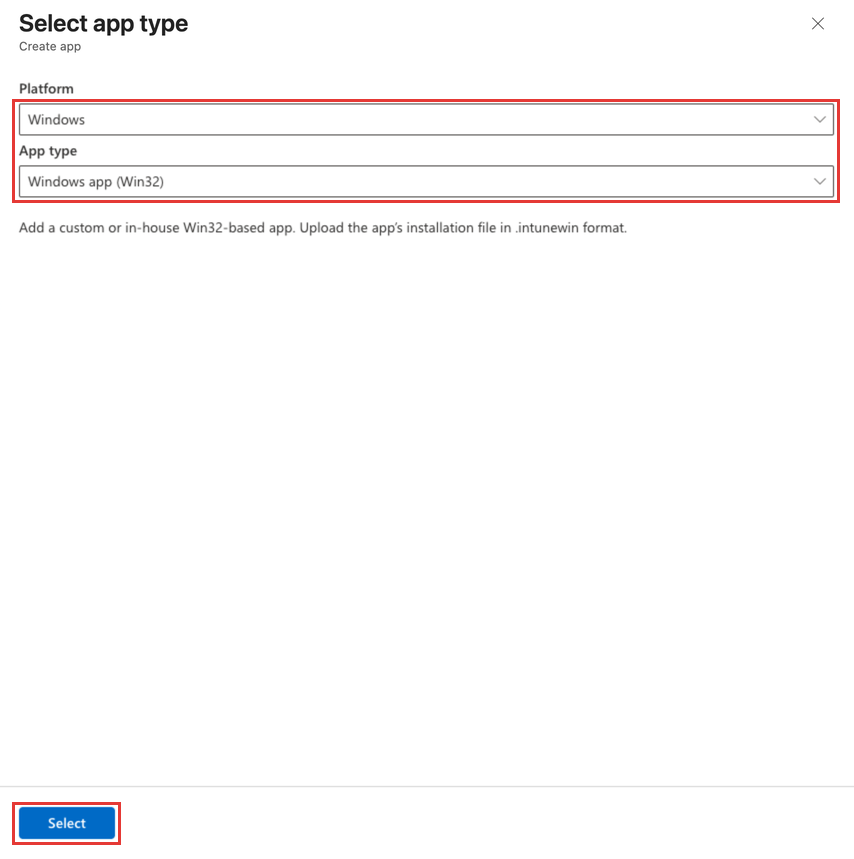
In the Microsoft Intune admin center, go to Apps > All Apps > Create. Set Platform to Windows and App type to Windows app (Win32), then select Select.
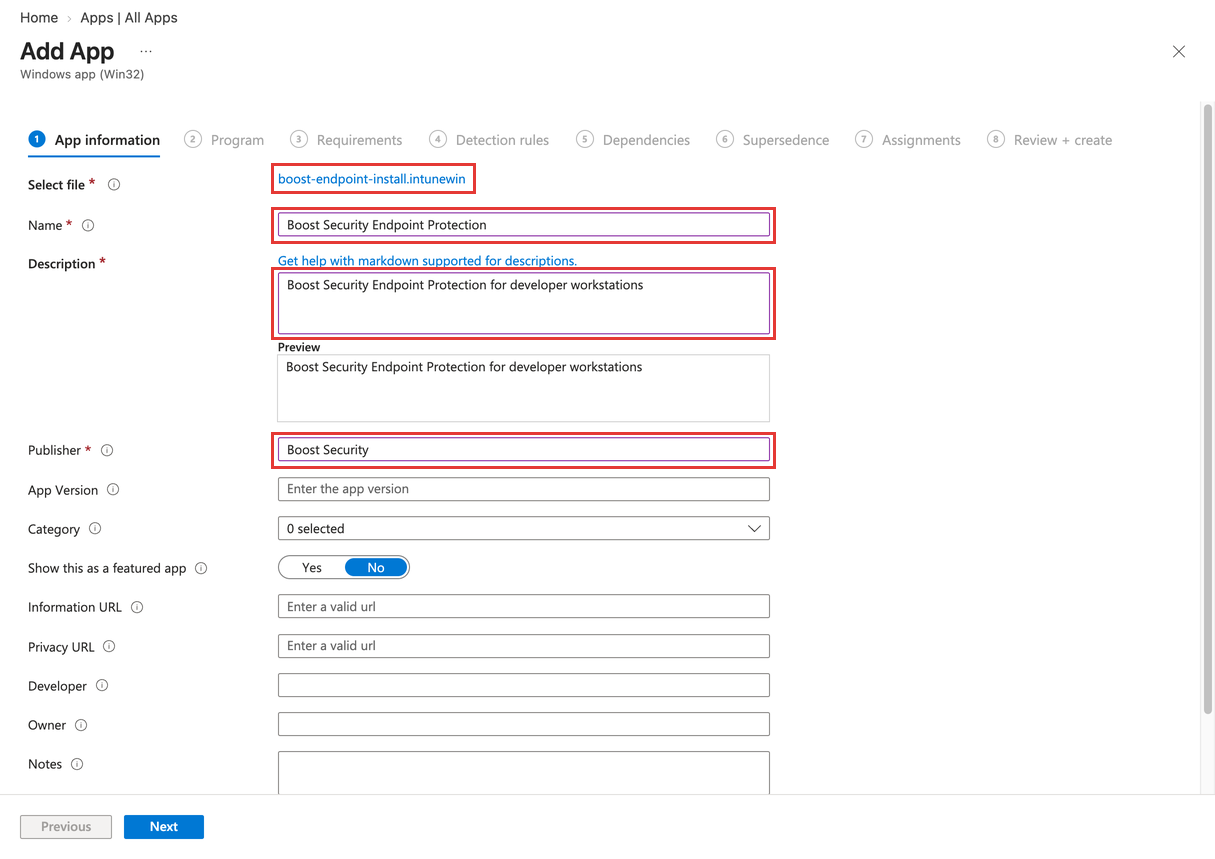
App Information
Under Select file, choose boost-endpoint-install.intunewin. Enter a name, a description, and a publisher, such as Boost Security Endpoint Protection and Boost Security.
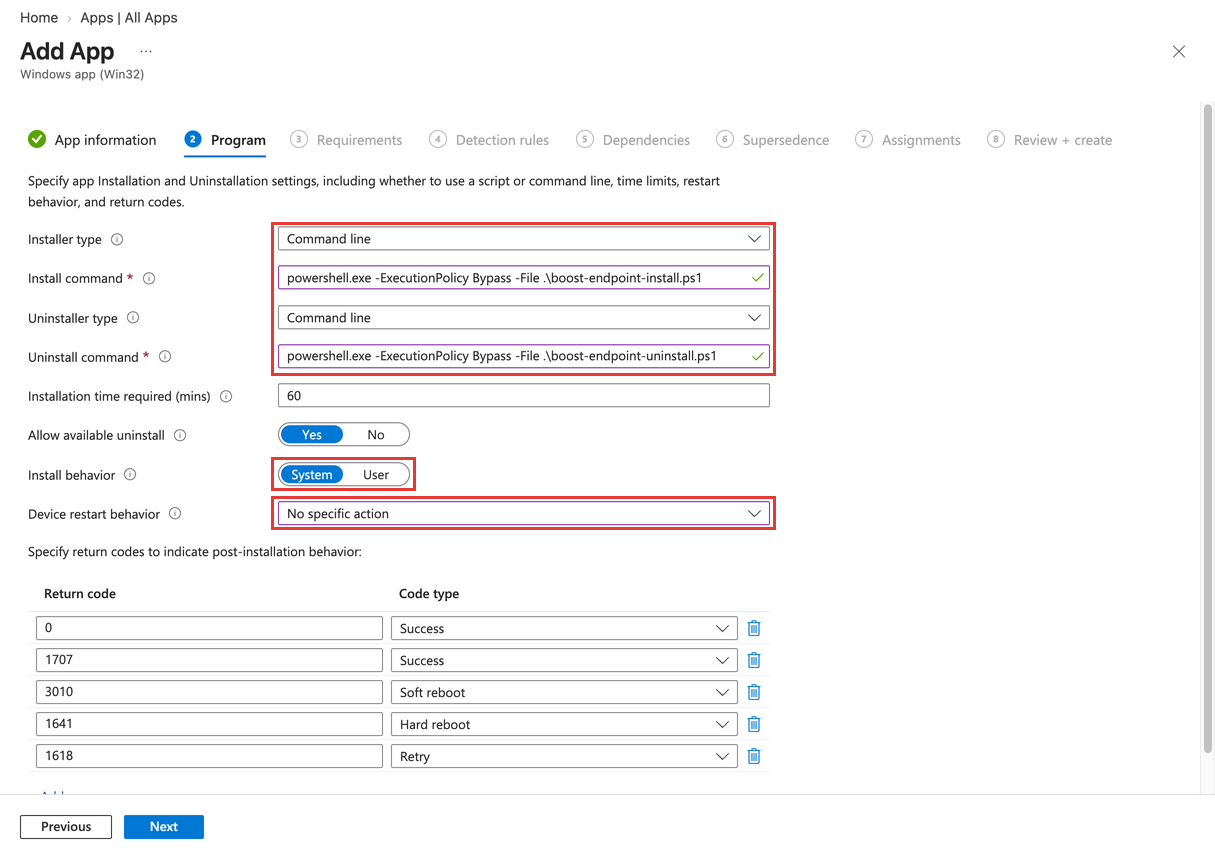
Program
| Setting | Value |
|---|---|
| Installer type | Command line |
| Install command | powershell.exe -ExecutionPolicy Bypass -File .\boost-endpoint-install.ps1 |
| Uninstaller type | Command line |
| Uninstall command | powershell.exe -ExecutionPolicy Bypass -File .\boost-endpoint-uninstall.ps1 |
| Install behavior | System |
| Device restart behavior | No specific action |
Keep the default values for the other settings. The install behavior must be System: the script needs administrator privileges.
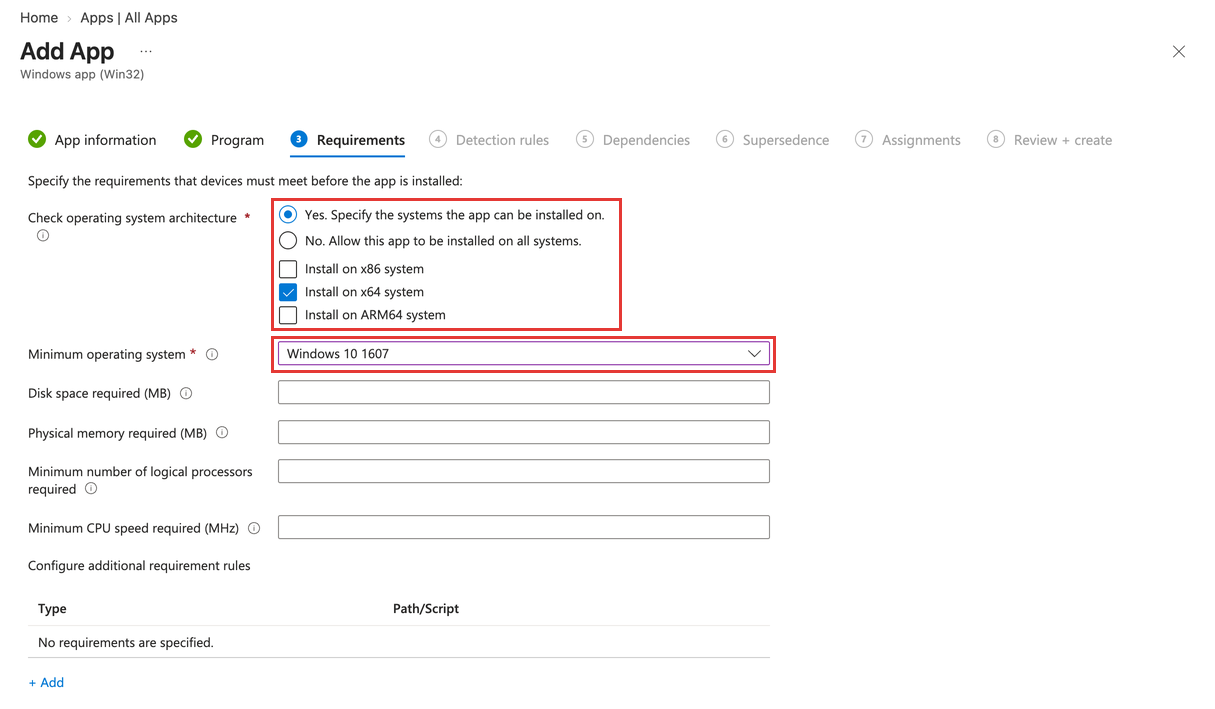
Requirements
| Setting | Value |
|---|---|
| Check operating system architecture | Yes, with only Install on x64 system selected |
| Minimum operating system | The oldest Windows version your devices run |
Detection Rules
Set Rules format to Manually configure detection rules, select Add, and fill in the rule:
| Setting | Value |
|---|---|
| Rule type | File |
| Path | C:\ProgramData\BoostSecurity\state |
| File or folder | device.json |
| Detection method | File or folder exists |
| Associated with a 32-bit app on 64-bit clients | No |
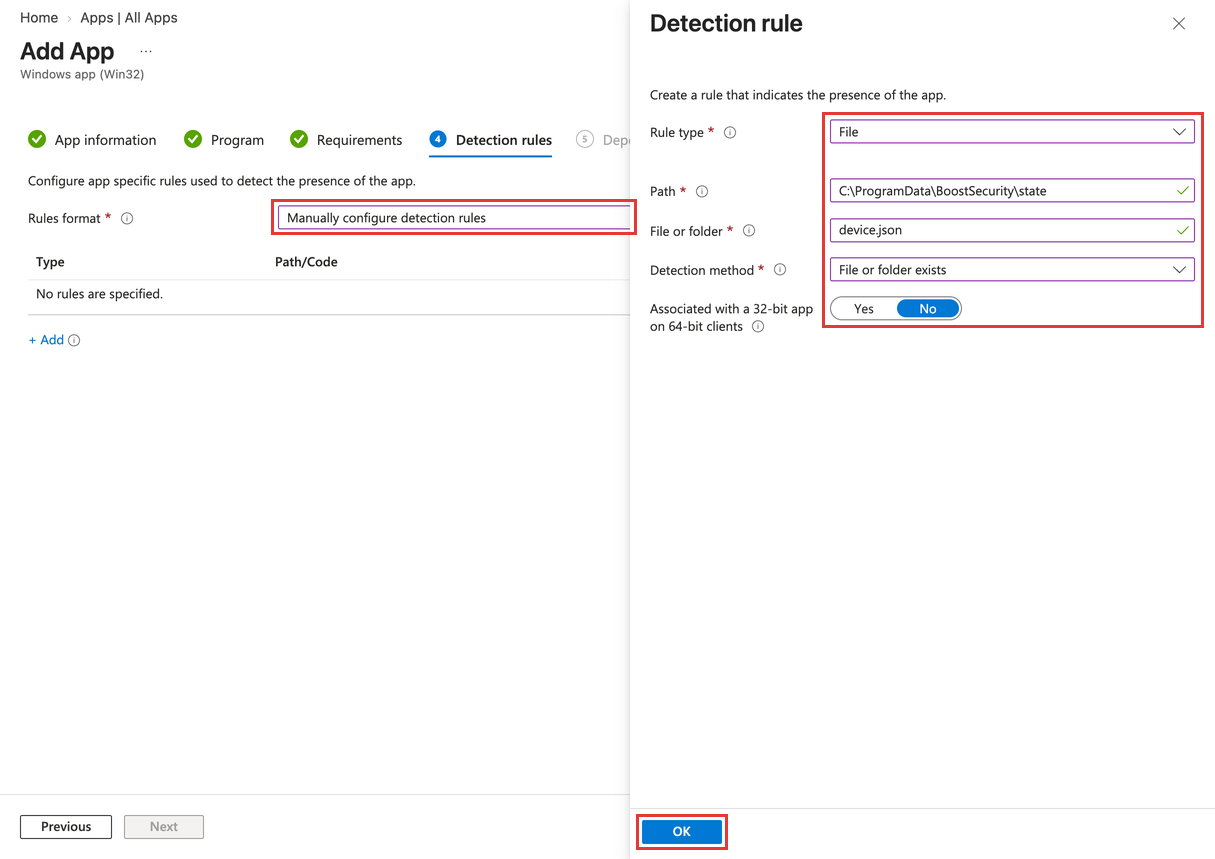
Select OK. The rule appears in the list:
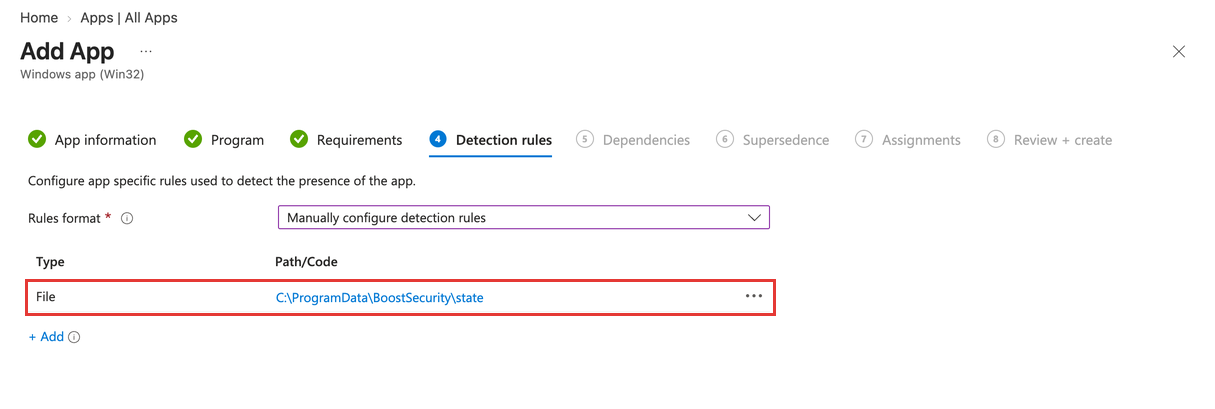
Endpoint Protection writes this file when the device registers with Boost Security, early in the install. Intune reports the app as installed once the device has registered.
Assignments
Skip Dependencies and Supersedence. Under Required, select Add group and choose the device groups to protect, such as a Microsoft Entra group of developer workstations. Then select Next, Review + create, and Create.
- Use device groups. The app installs on the device and protects every user who signs in to it.
- Roll out in stages. Start with a small pilot group, check the results as described in Verify the Deployment, then add more groups to the same assignment.
- Leave devices out. To skip some devices in an assigned group, such as build servers, put them in another group, add that group to the assignment, and set its Group mode to Excluded.

Verify the Deployment
-
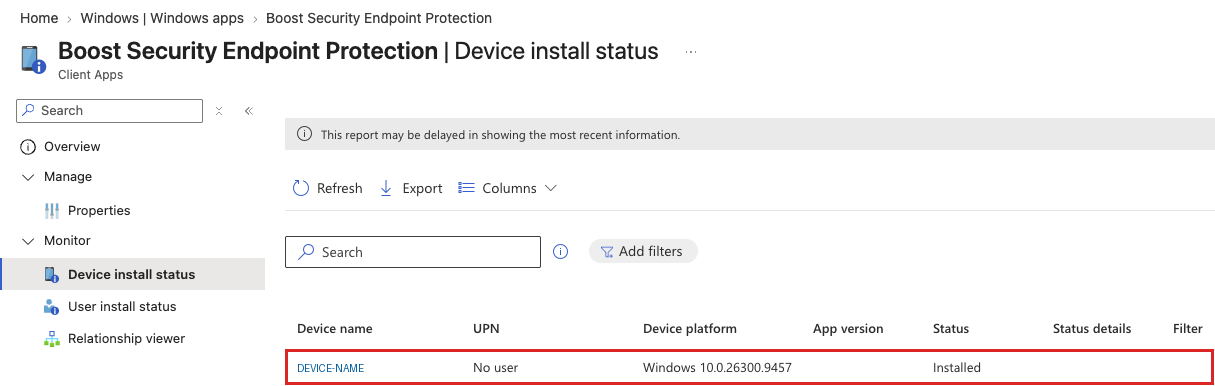
In the Intune admin center, open the app and select Device install status. Each device shows Installed once it has registered with Boost Security. The status can take some time to update.
-
In Boost Security, open the Endpoint Devices page. Each device appears there after it registers.
Endpoint Protection scans the device as soon as it is installed. Package Management Protection starts within a few minutes for each user who is signed in, and for other users when they sign in to Windows.
If a device shows Failed, the Intune log on the device explains why:
C:\ProgramData\Microsoft\IntuneManagementExtension\Logs\AppWorkload.log
An install can fail after the device has registered, for example when the device cannot download Endpoint Protection. The device then has the file that the detection rule checks, so Intune does not run the install again. To retry, run the uninstall command on the device as an administrator. Intune no longer detects the app and installs it again.
Updates
Endpoint Protection keeps itself up to date, so you do not publish new versions of the app in Intune. Replace the package file only to change the deployment token or the script configuration.
Intune runs a new package only on devices where it does not detect the app. Devices that already have Endpoint Protection keep their settings, and only devices that install it later use the new package.
Uninstall
To remove Endpoint Protection, open the app's Assignments, add a group of devices under Uninstall, and remove or exclude those devices from the groups under Required. When a device is in both, Required wins. Intune then runs the uninstall command on the devices in the Uninstall group.
Note: The uninstall restores the package manager settings only for the users who are signed in to the device when it runs.
Note: Intune does not remove a Windows app (Win32) when a device is retired. Before you retire a device, uninstall Endpoint Protection from it as described above, and wait until Intune reports the app as uninstalled.
Security Notes
- The install script and the
.intunewinpackage contain your deployment token. Limit who can download them and who can manage the app in Intune. - The Security Notes of the script installation also apply.