AI Tools
The AI Tools page in Endpoint Protection lists the AI coding agents and chat apps found on developer endpoints, such as Claude Code, Codex, Cursor, ChatGPT Desktop and Claude Desktop. For each AI tool, it shows the large language model (LLM) providers and models it uses, the Model Context Protocol (MCP) servers and skills configured for it, and the developers and devices it runs on.
To open it, go to Endpoint Protection > AI Tools in the navigation panel.
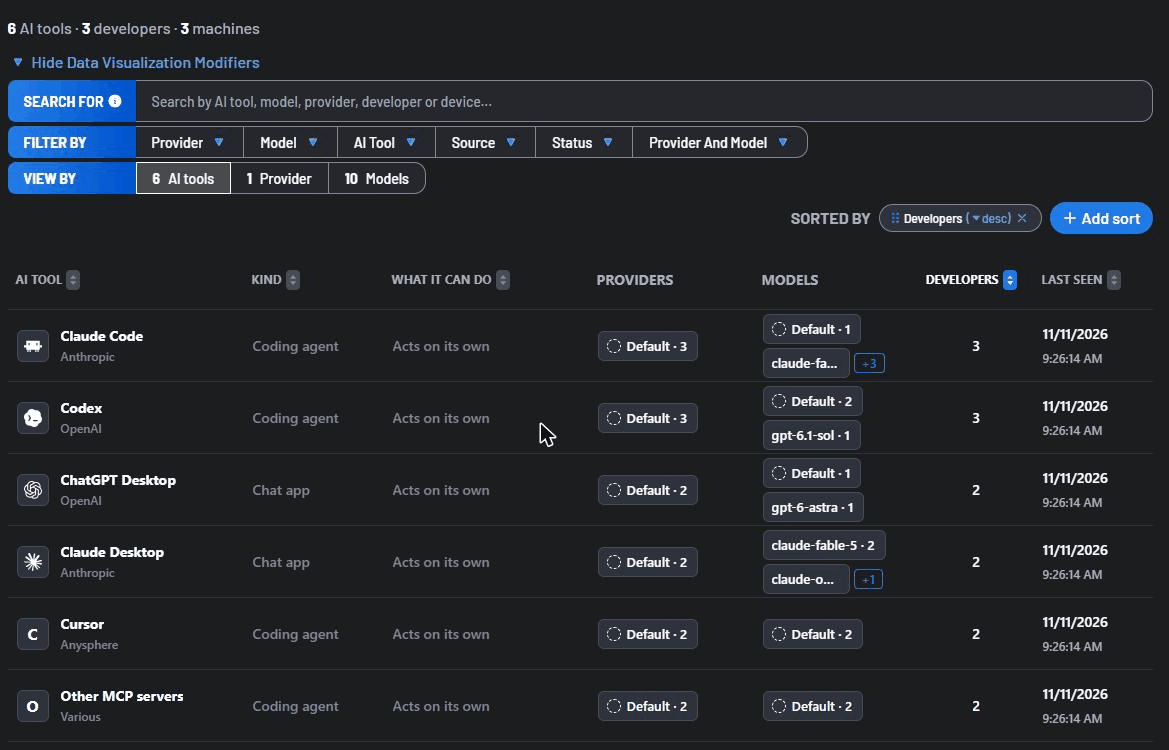
A summary line at the top of the page gives the totals in scope, for example 6 AI tools · 3 developers · 3 machines. While a search or a filter is active, the line ends with for the current filters, and the totals count only the matching items.
Search and Filters
The Search For box matches an AI tool, a model, a provider, a developer or a device. Pressing Enter applies the search; the × at the right of the box clears it.
The Filter By bar has six multi-select filters. Each option shows its count, and the longer lists have their own search box. A selected filter adds its count to the filter button, for example Model [1], and a chip in the Search For bar, which you can remove with its ×.
| Filter | Filters on |
|---|---|
| Provider | The LLM provider the AI tool uses. |
| Model | The model the AI tool uses. |
| AI Tool | The AI tool. |
| Source | How the provider or model was determined, for example User config, Seen in use or Nothing set. See Field Values. |
| Status | The install state of the AI tool on the device: Installed, Settings only, Not installed or No longer found. |
| Provider And Model | Two conditions on the provider and model: Not the tool's default provider and Unknown model or provider. |
By default, the Status filter shows every status except No longer found.
While a search or a filter is active, Copy All copies a link to the page with the current search and filters, which opens the page with them applied. Clear All resets the search and filters.
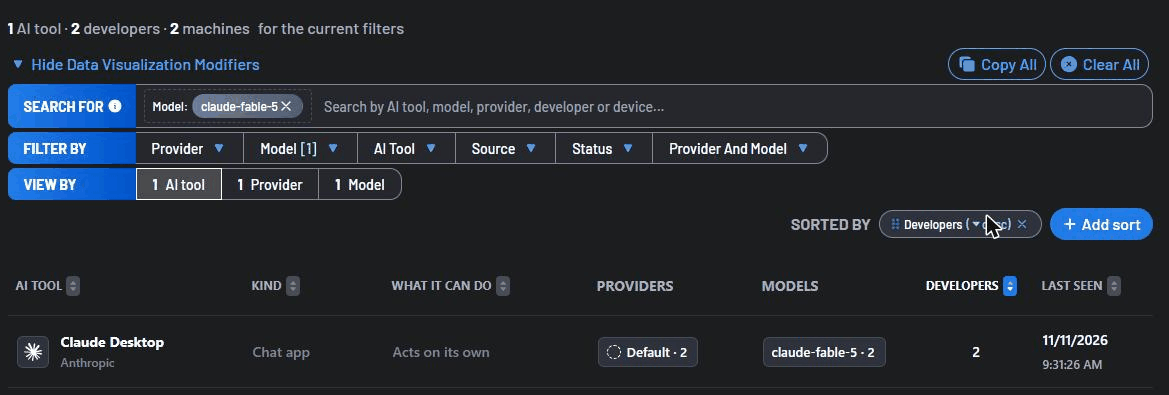
By default, Sorted By shows Developers, descending. Add sort lists the sortable columns: Developers, AI tool, Kind, What it can do and Last seen.
View By
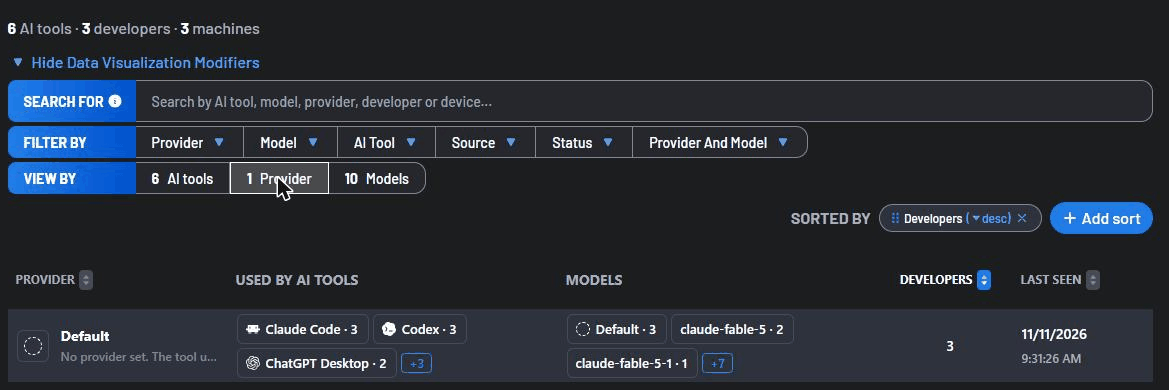
The View By buttons show the same data three ways. Each button shows its number of rows, which follows the search and filters.
| View | One row per | Columns |
|---|---|---|
| AI tools (default) | AI tool | AI Tool, Kind, What it can do, Providers, Models, Developers, Last seen |
| Provider | LLM provider | Provider, Used by AI tools, Models, Developers, Last seen |
| Models | Model | Model, Used by AI tools, Providers, Developers, Last seen |
In the Providers and Models columns, each chip shows the number of developers. When there are more models than fit, a +N badge opens the full list.
In the AI tools view, Last seen is the date of the most recent scan that found the AI tool, and hovering What it can do shows its definition. Clicking a row opens the AI Tool Details panel.
AI Tool Details
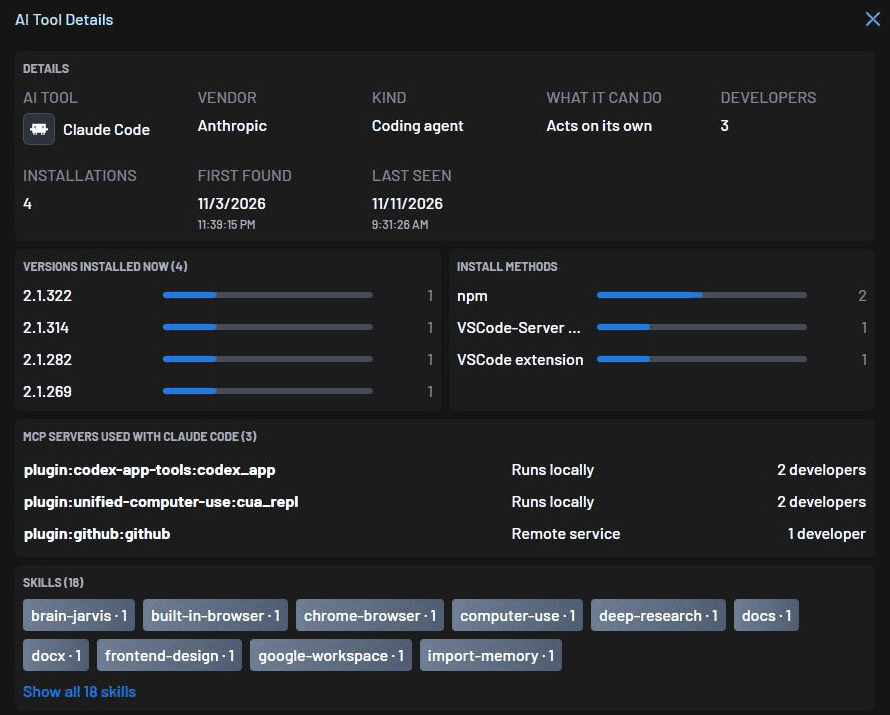
Click an AI tool to open the AI Tool Details panel. Its sections are:
- Details – The AI tool, its vendor, kind, what it can do, its number of developers and installations, and when it was first found and last seen. A developer can have more than one installation.
- Versions installed now – How many installations run each version.
- Install methods – How many installations use each install method, for example npm or a VS Code extension.
- MCP servers used with AI tool – Each MCP server, whether it Runs locally or is a Remote service, and its number of developers.
- Skills – The skills found for the AI tool, with their number of developers. Click Show all N skills to list them all.
- Providers and models – The providers and models the AI tool uses. Filter AI tools to AI tool filters the page on the AI tool and closes the panel.
- Developers – The developers and devices using the AI tool, with their providers, models, source and last seen date. Search it by developer or device, and click a developer to open their Developer AI Tools panel.
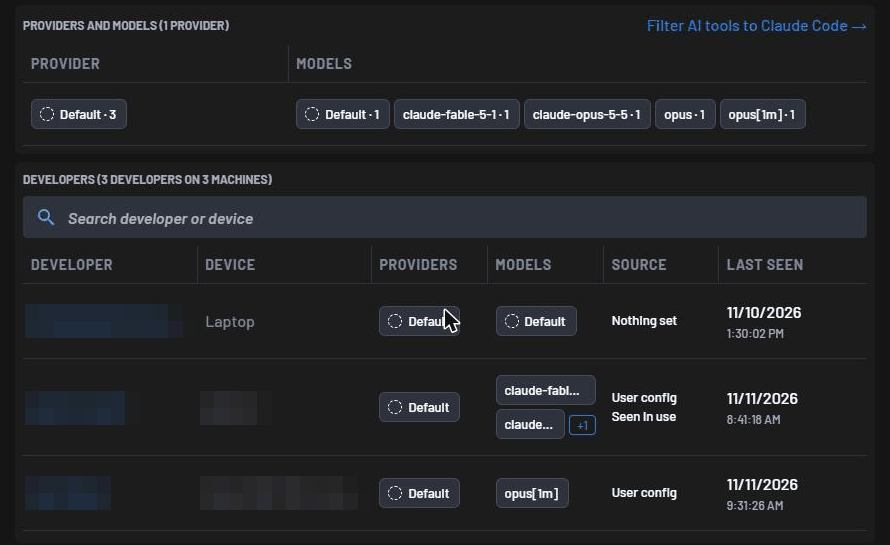
Developer AI Tools
The Developer AI Tools panel lists the AI tools on one developer's device. Details shows the developer, the device, with a link to the device, and the date of the last scan. A developer whose name can't be resolved shows as a unique identifier; see Developers View.
Under AI tools on this machine, each AI tool has a card that expands to show:
- Providers and models – Each provider and model, its source, the file it was read from, and its status.
- Installations – The install method, the version and the program path. Symlink marks a program path that is a symbolic link.
- First found and Last seen dates.
- MCP servers used by AI tool – Each MCP server, where it runs, and where its configuration applies: All projects, or Only in followed by the folder name of the only project it is configured for. Hovering the folder name shows the full project path.
- Skills for AI tool.
- Settings found – The configuration paths found on the device.
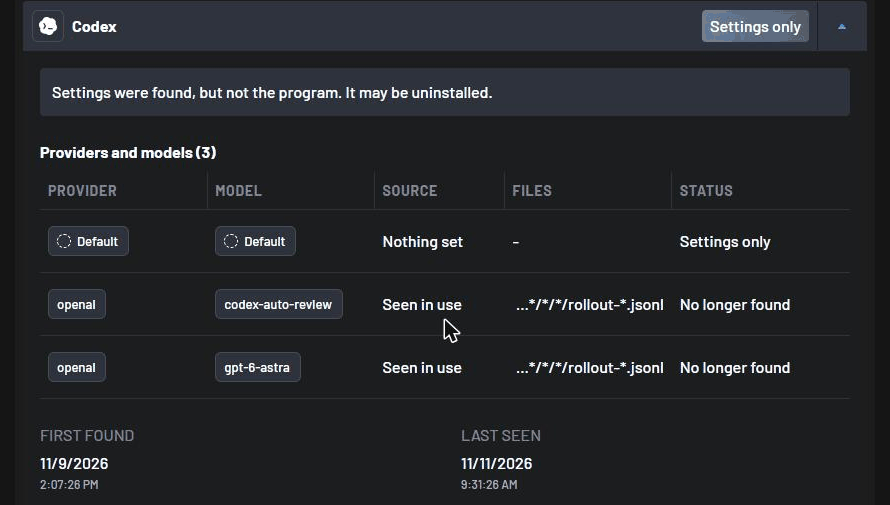
An AI tool found only through its configuration files carries a Settings only badge: Boost Security found its settings, but not the program, which may have been uninstalled.
The panel ends with an Open developer in Inventory & Alerts link to Inventory & Alerts. Back to AI tool, at the top of the panel, returns to the AI Tool Details panel.
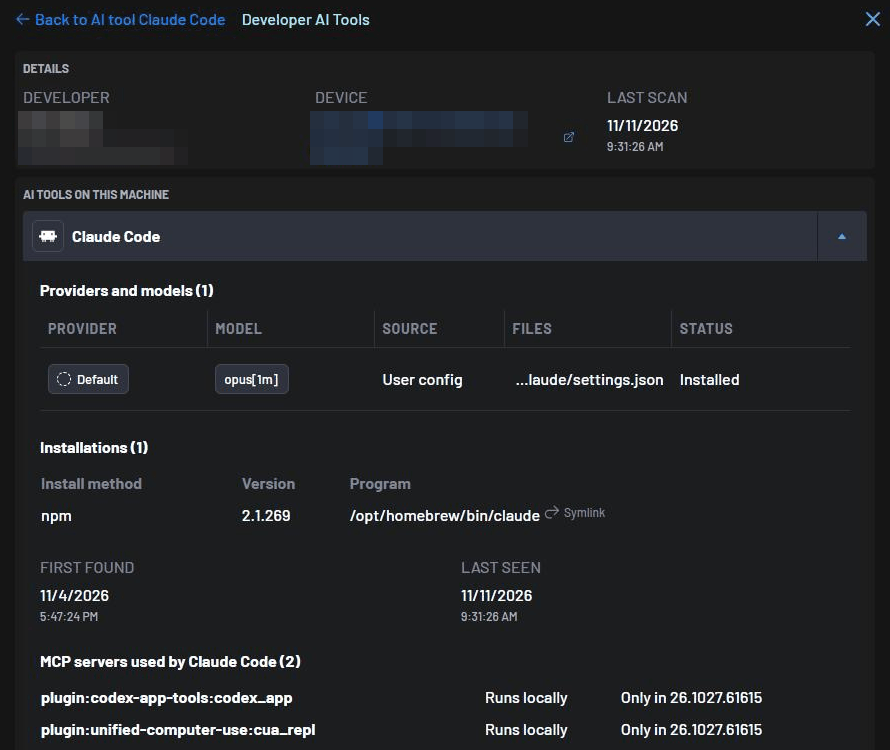
In the following example, the project folder is a plugin cache folder named after the plugin version, so Only in shows a version number.

Provider and Model Details
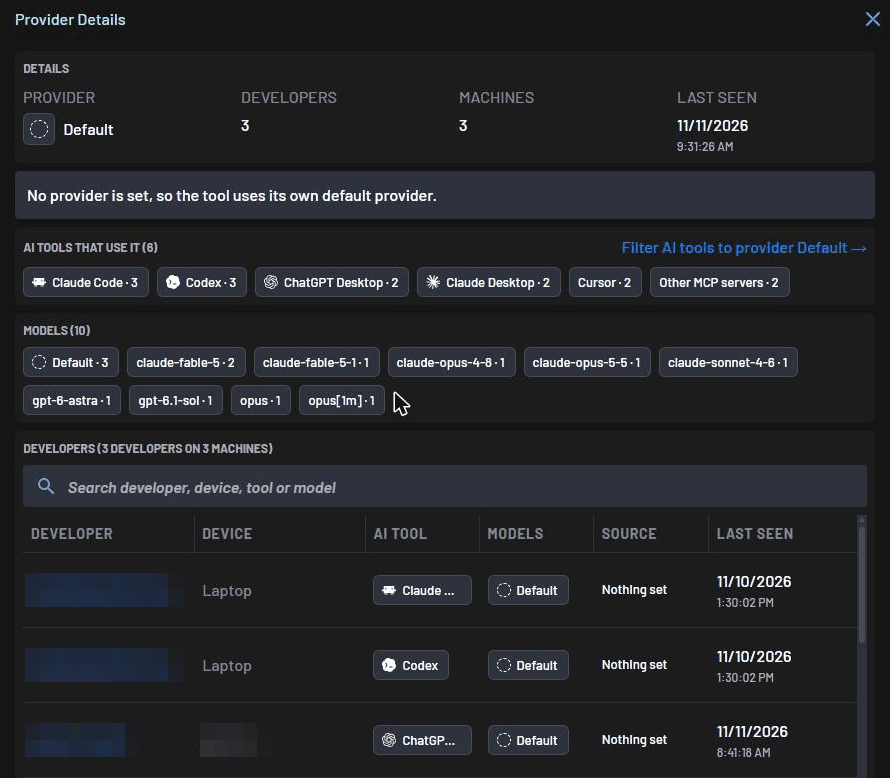
Click a provider chip, or a row of the Provider view, to open the Provider Details panel. Click a row of the Models view to open the Model Details panel. Both panels show:
- Details – The provider or model, its number of developers and devices, and when it was last seen.
- AI tools that use it – With a link that filters the page on the provider or model.
- Models (in Provider Details) or Providers (in Model Details).
- Developers – The developers and devices using it, searchable by developer, device, AI tool, model or provider.
Field Values
| Field | Value | Meaning |
|---|---|---|
| Kind | Coding agent | An agentic coding tool, such as Claude Code, Codex or Cursor. |
| Kind | Chat app | A desktop chat application, such as ChatGPT Desktop or Claude Desktop. |
| What it can do | Acts on its own | Runs commands, edits files or drives a browser. |
| Provider, Model | Default | No provider or model is set, so the AI tool uses its built-in default. |
| Provider | company gateway | Not a public provider. A managed configuration sets it, so it is most likely your company's own gateway. It isn't counted in Unknown model or provider. |
| Provider | Local | The provider runs on the device itself, at a localhost or loopback address. |
| Source | User config | The provider or model was read from the AI tool's own configuration files in the user's home folder. |
| Source | Project config | The provider or model was read from a configuration file inside a project's repository on the device. |
| Source | Managed config | The provider or model was read from a system or MDM policy file outside the home folder, set by your organization. |
| Source | Shell profile | The provider or model was read from an export, an alias or a function in a shell startup file, such as ~/.zshrc. |
| Source | Shell history | The provider or model was found in the shell history, in a command that runs the AI tool or sets its environment variables. |
| Source | Seen in use | The provider or model was found in the AI tool's most recent session files. |
| Source | Nothing set | No provider or model is set; the AI tool's default applies. |
| Status | Installed | The program and its settings were found. |
| Status | Settings only | The settings were found, but not the program. It may have been uninstalled. |
| Status | Not installed | No device in scope has the AI tool or its settings now: it was seen only in the shell history, or it is no longer found. |
| Status | No longer found | The AI tool or value was found by an earlier scan, but not by the latest one. An AI tool that is no longer found was probably uninstalled. |
| MCP server location | Runs locally, Remote service | Whether the MCP server runs on the device or is a hosted service. |
| MCP server scope | All projects | The MCP server is configured for every project. |
| MCP server scope | Only in project | The MCP server is configured for one project only. The label shows the project's folder name, and hovering it shows the full path. |
| Provider And Model | Not the tool's default provider | The AI tool is configured for a provider other than its default, such as a proxy or a third-party endpoint. For example, Claude Code sends its requests to OpenRouter instead of Anthropic. |
| Provider And Model | Unknown model or provider | Boost Security doesn't recognize the model or the provider. An unknown model is shown with the name the AI tool uses; an unknown provider is shown as the host name of its address. |
A .env file that the AI tool loads itself is reported as configuration, like the AI tool's other configuration files. When a provider or model is found in several sources, each source is listed: none takes precedence over another.